LESSON 01.02 · 25 MIN PRACTICE
Install Studio and make a safe workspace
Studio is the paid edition of Resolve. Start with the correct installer, a supported system, and a recoverable practice project. A project file stores your edit decisions; it is not a copy of the media.
Originals + second copy›Project + backup›Test restore
Conceptual workflow · read from left to right
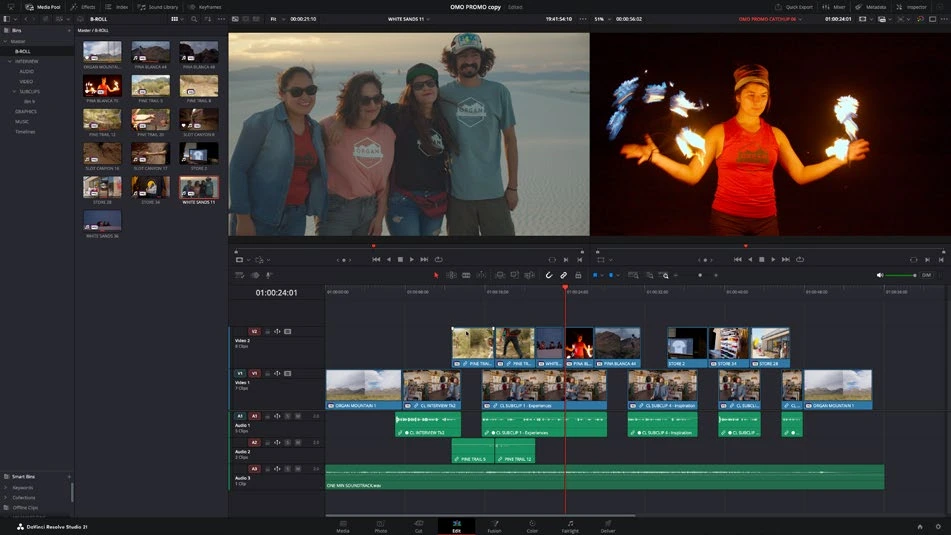
ACTUAL RESOLVE INTERFACEView full size ↗
Work through it
- Get the Studio installer from Blackmagic’s support center. Read its release notes for your operating system and GPU. Follow the supplied licensing process; do not assume installing the free edition enables Studio tools.
- Create a course folder with Footage, Audio, Graphics, Exports, and Project Backups subfolders. Put a few clips you own in Footage and keep a second copy on a separate device.
- In Preferences, review Media Storage and choose a writable drive with free space. Under User preferences, find Project Save and Load and enable project backups. Live Save and scheduled backups solve different problems.
- Save the practice project, export a .drp from the Project Manager, then import that .drp with a different name. Confirm that its media is online. This is a recovery rehearsal, not just a backup promise.
Your turn
Write a two-line recovery plan: where your originals live, and how you would restore a project after a drive failure. Make one test restore.
QUICK KNOWLEDGE CHECK
What does a typical .drp preserve?
Your notes
Write down what worked, what surprised you, and what to try next. Saved on this device.
Original practical lesson · Open the in-house resource shelf for practice files and definitions. Completion records your self-assessment, not certification.