LESSON 15.02 · 35 MIN PRACTICE
Render ranges, presets, queues, and transparent output
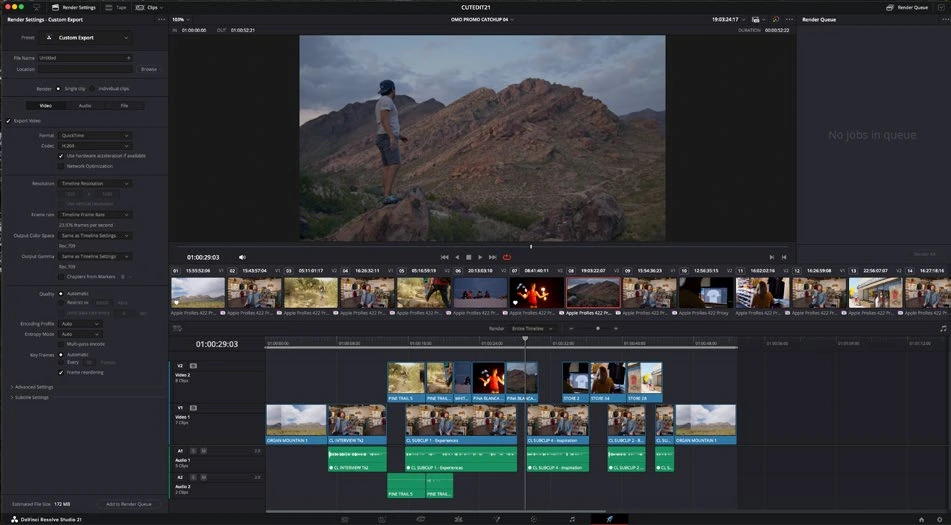
The Deliver page renders what its settings specify, which may differ from what you intended. Range, active timeline, enabled streams, and destination deserve a deliberate final check.
ACTUAL RESOLVE INTERFACEView full size ↗
Work through it
- Open Deliver and confirm the active timeline. Choose Entire Timeline or a deliberate In/Out range, then inspect the range markers and expected duration.
- Set a clear filename and destination. Review video and audio export switches, frame rate, resolution, and single-clip versus individual-clip mode.
- Add the job to the render queue and inspect the queued settings. If you change the timeline or settings afterward, verify the queued job reflects the intended state.
- For transparent graphics, choose a supported format/codec combination with alpha export available. Render and reimport it over a contrasting background to verify actual transparency.
Your turn
Queue a full review render and a short test range with distinct names. Reopen both files and confirm duration, sound, and framing.
QUICK KNOWLEDGE CHECK
How should an alpha export be checked?
Your notes
Write down what worked, what surprised you, and what to try next. Saved on this device.
Original practical lesson · Open the in-house resource shelf for practice files and definitions. Completion records your self-assessment, not certification.