LESSON 15.03 · 40 MIN PRACTICE
Vertical, square, and multiple delivery versions
Different aspect ratios require editorial judgment. Cropping a horizontal image can remove context or subtitles. A good alternate version respects the new frame instead of blindly scaling the old one.
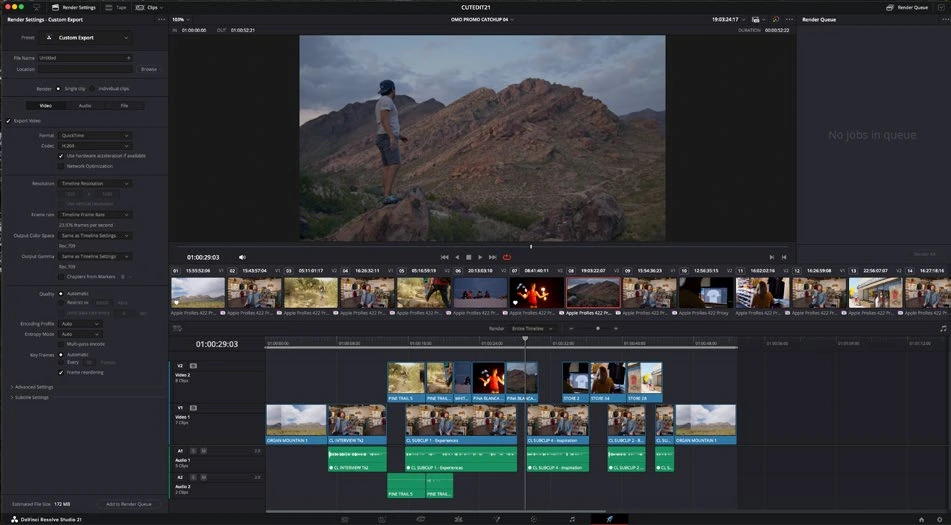
ACTUAL RESOLVE INTERFACEView full size ↗
Work through it
- Duplicate the finished timeline for each output version and label it clearly. Set the intended dimensions and confirm that the original version remains available.
- Review each shot’s framing. Reposition or scale deliberately and inspect moving subjects throughout the clip. Use automatic reframing only as a draft to review.
- Adjust titles and subtitles for the new composition and actual viewing size. Check safe areas and avoid placing text where the intended platform overlays controls.
- Export a short sample of each version and compare the storytelling. A different crop may require a different shot or slightly different timing.
Your turn
Deliver 16:9 and 9:16 versions of a 20-second sequence. Check every title, face, and moving subject in both outputs.
QUICK KNOWLEDGE CHECK
What is the most important reframing check?
Your notes
Write down what worked, what surprised you, and what to try next. Saved on this device.
Original practical lesson · Open the in-house resource shelf for practice files and definitions. Completion records your self-assessment, not certification.