LESSON 02.03 · 25 MIN PRACTICE
Proxies, optimized media, and render cache
These tools solve different performance problems. Proxies are alternate source files. Optimized media is Resolve-managed source optimization. Render cache stores processed results to avoid recalculating expensive effects.
Original → proxy›Timeline + effects → cache›Delivery → verify source
Conceptual workflow · read from left to right
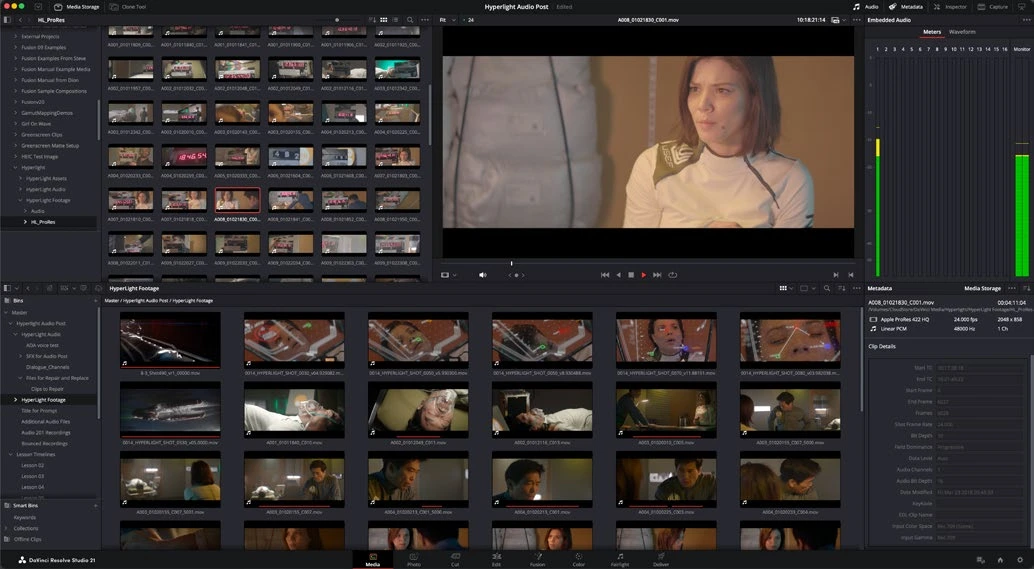
ACTUAL RESOLVE INTERFACEView full size ↗
Work through it
- Choose one demanding clip and observe playback before changing anything. Note dropped frames or stuttering so you have a baseline.
- Choose a proxy format and location in project settings, then generate proxy media for the clip from the Media Pool. Pick a lightweight supported editing codec and resolution appropriate to your computer.
- Use the proxy-handling options under Playback to compare camera originals with proxies. Confirm that switching does not change clip timing or framing.
- For a clip with an expensive effect, enable an appropriate render-cache mode and wait for the cached section. Disable the effect or adjust it and observe how cache validity changes.
Your turn
Create a small comparison log: original playback, proxy playback, and cached effect playback. Before a test export, review whether Deliver is allowed to use proxy, optimized, or cached media.
QUICK KNOWLEDGE CHECK
Which tool stores an already-processed effect result?
Your notes
Write down what worked, what surprised you, and what to try next. Saved on this device.
Original practical lesson · Open the in-house resource shelf for practice files and definitions. Completion records your self-assessment, not certification.