LESSON 02.01 · 25 MIN PRACTICE
Import, bins, metadata, and useful names
A bin is an organizational container inside the project. It does not move your source files on disk. Good organization lets you find an image by meaning instead of repeatedly opening every file.
Disk folders›Media Pool›Bins + metadata›Selects
Conceptual workflow · read from left to right
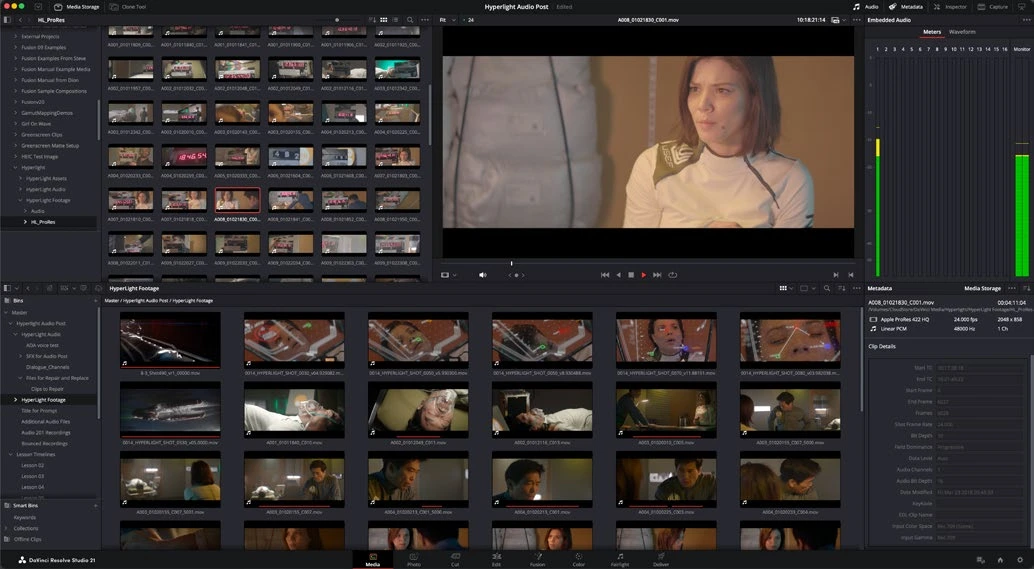
ACTUAL RESOLVE INTERFACEView full size ↗
Work through it
- In the Media page, use Media Storage to find your course footage and bring it into the Media Pool. Check thumbnails and audio waveforms before moving on.
- Create bins for Interviews, B-roll, Music, and Graphics. Put source clips in the appropriate bins. Keep camera filenames intact on disk so relinking and handoffs remain predictable.
- Select a clip and inspect Metadata. Add a description, scene, or keywords where appropriate. Use consistent words: for example, exterior, dusk, wide, and city.
- Switch between list and thumbnail views. Sort by duration or frame rate. Create a Smart Bin from a metadata condition and verify it includes only the clips you expect.
Your turn
Organize ten clips so you can find all exterior wide shots in under ten seconds. Add meaningful metadata to at least three clips and test your Smart Bin.
QUICK KNOWLEDGE CHECK
What does moving a clip between bins change?
Your notes
Write down what worked, what surprised you, and what to try next. Saved on this device.
Original practical lesson · Open the in-house resource shelf for practice files and definitions. Completion records your self-assessment, not certification.