LESSON 09.03 · 40 MIN PRACTICE
Text+ animation and the Spline editor
Fusion animation becomes manageable when timing and shape are considered separately. Keyframes establish important moments; curves determine how values travel between those moments.
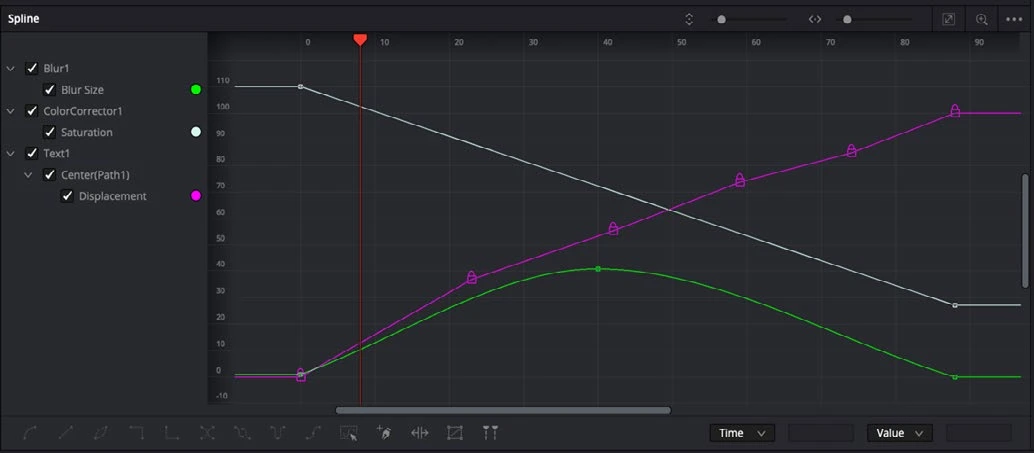
ACTUAL RESOLVE INTERFACEView full size ↗
Work through it
- Create a Text+ title with a short phrase. Establish a readable final layout before animating it. Keep the message meaningful without motion.
- Set a starting keyframe and an ending keyframe for one property such as position or opacity. Preview at normal speed to choose the duration.
- Open the Spline editor, select the animated property, and compare linear interpolation with a eased curve. Adjust handles to control acceleration without accidental overshoot.
- Duplicate or offset related elements to create a deliberate sequence. Keep the total reading time long enough after all elements settle.
Your turn
Animate a title and subtitle with a short offset. Deliver a five-second composition that includes at least two seconds of stable reading time.
QUICK KNOWLEDGE CHECK
What does the Spline editor help you refine?
Your notes
Write down what worked, what surprised you, and what to try next. Saved on this device.
Original practical lesson · Open the in-house resource shelf for practice files and definitions. Completion records your self-assessment, not certification.