LESSON 10.02 · 50 MIN PRACTICE
Rotoscoping and paint fixes that survive motion
Rotoscoping defines changing boundaries over time. The most efficient shapes follow stable parts of the subject rather than forcing one complex outline to solve every movement.
ACTUAL RESOLVE INTERFACEView full size ↗
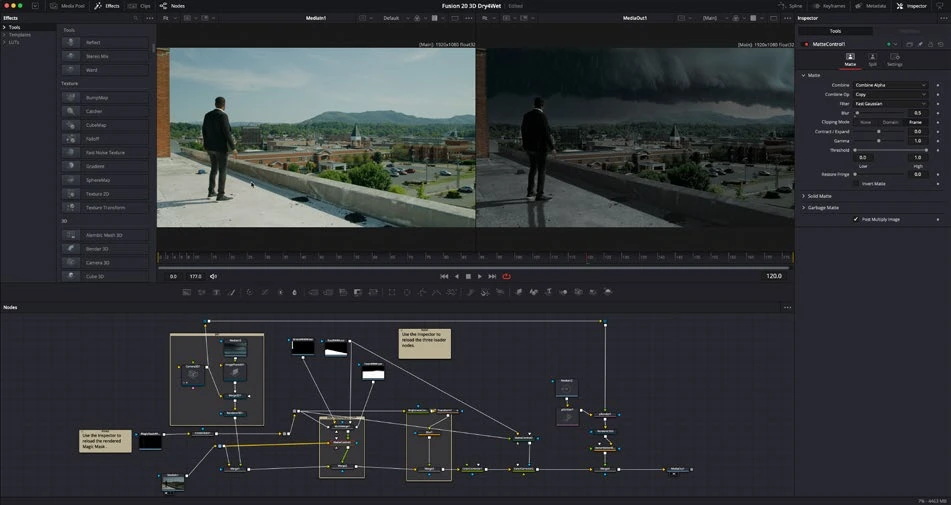
Work through it
- Choose a short shot with a manageable moving object. Build separate simple shapes for parts that move differently, instead of one outline with excessive points.
- Set shapes on important change frames first: direction changes, occlusions, and poses. Let interpolation fill the easy motion, then inspect the in-between frames.
- Combine tracking with manual shape animation when useful. Keep the edge softness proportional to the source’s focus and motion blur.
- For a small paint repair, choose a clean source area and validate the repair over the full duration. A still-frame patch can reveal itself when texture, lighting, or perspective changes.
Your turn
Isolate a moving object for two seconds and use the matte for a subtle local effect. Review both the matte and final composite in motion.
QUICK KNOWLEDGE CHECK
Why split roto into simpler shapes?
Your notes
Write down what worked, what surprised you, and what to try next. Saved on this device.
Original practical lesson · Open the in-house resource shelf for practice files and definitions. Completion records your self-assessment, not certification.