Scripting: inspect safely before automating
Resolve scripting can reduce repetitive work, but scripts operate on real project state. Start with read-only inspection, use the API documentation installed with your exact build, and test on disposable projects.
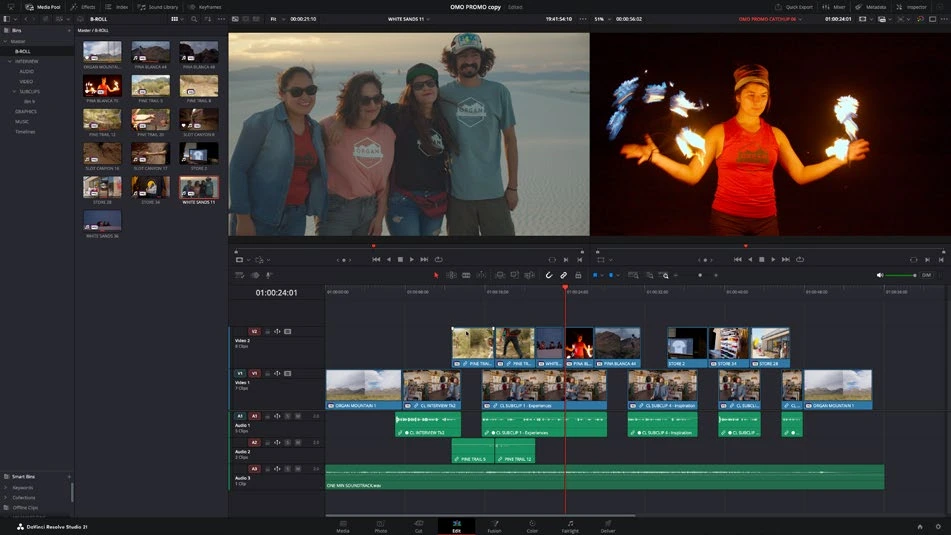
Work through it
- Locate the scripting documentation and sample scripts installed with Resolve. Identify the supported Python or Lua environment and the access settings required by your Studio build.
- Begin with the in-app console and a read-only query for the current project or timeline using the documented API. Confirm what object was returned before calling methods on it.
- Write down a narrow automation goal, such as reporting timeline names or render-job status. Validate inputs and handle the case where no project or timeline is open.
- Only after read-only inspection works, test a small reversible change on a duplicate project. Log affected items and compare the result with doing the same action manually.
Understand the decision
The 21.1 release expands scripting APIs and console support. This lesson teaches the workflow rather than assuming method names are stable across every installation. Keep scripts small, document their required version, and preserve the original project before mutations.
Your turn
Design a read-only project audit that reports timeline names, frame rates, and render destinations supported by the installed API. Record any unavailable fields rather than inventing them.
What is the best first scripting task?
Your notes
Write down what worked, what surprised you, and what to try next. Saved on this device.
Original practical lesson · Open the in-house resource shelf for practice files and definitions. Completion records your self-assessment, not certification.