LESSON 04.01 · 25 MIN PRACTICE
Track targeting, selection, and linked clips
A timeline contains tracks, clips, and edit points. What is selected and which tracks are targeted affect editing commands. Learn to predict the affected material before using a shortcut.
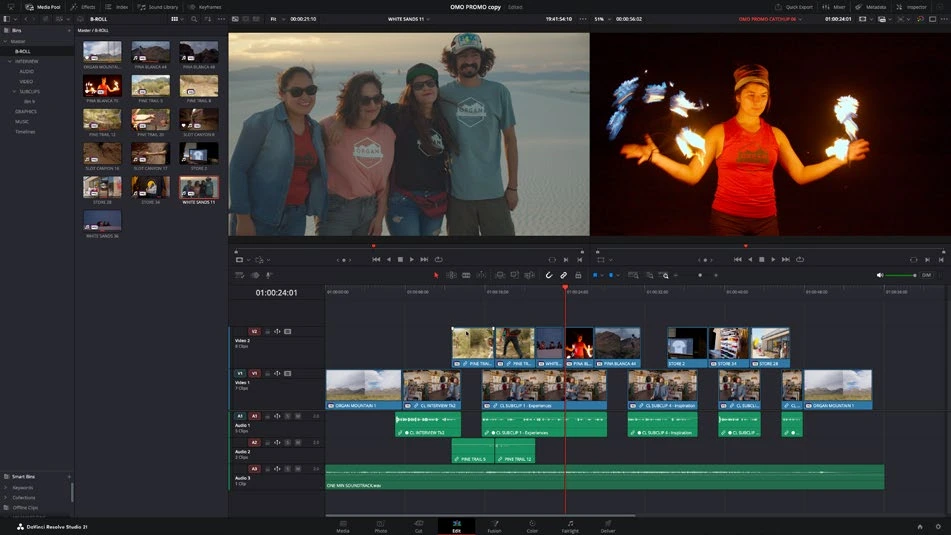
ACTUAL RESOLVE INTERFACEView full size ↗
Work through it
- Build a timeline with picture on V1 and camera sound on A1. Add a second video layer and a music track. Give tracks meaningful names.
- Select a linked video/audio pair. Toggle Linked Selection and observe the selection behavior. Keep synchronization intact unless there is a deliberate reason to separate them.
- Lock one track, perform a small move on another, then undo. Compare a lock with disabling track output: one protects edits, the other changes what is seen or heard.
- Before an insert or ripple operation, inspect track selectors and automatic track-selection controls. Test on a duplicated timeline and watch what shifts.
Your turn
Move a video clip and its sound together, then move only the picture while leaving sound in place. Undo the offset and explain how you verified sync.
QUICK KNOWLEDGE CHECK
Why can a ripple edit shift unexpected clips?
Your notes
Write down what worked, what surprised you, and what to try next. Saved on this device.
Original practical lesson · Open the in-house resource shelf for practice files and definitions. Completion records your self-assessment, not certification.