LESSON 05.01 · 40 MIN PRACTICE
Multicam: synchronize, switch, and refine
A multicam clip groups synchronized camera angles into one editorial source. Synchronization comes first; choosing the best angle comes second. A polished multicam edit is still a storytelling decision.
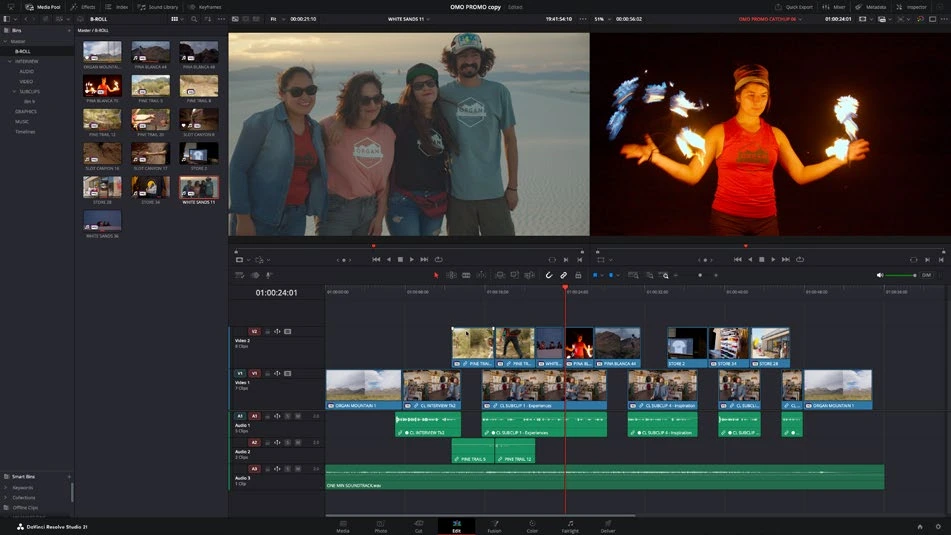
ACTUAL RESOLVE INTERFACEView full size ↗
Work through it
- Import two or more angles of the same event. Assign clear camera or angle metadata. Check whether reliable timecode or usable scratch audio exists on every angle.
- Select the sources and create a multicam clip using an appropriate sync method. Open its underlying timeline and check matching actions near the beginning and end.
- Place the multicam clip on an edit timeline and open the multicam viewer. Play in real time and switch picture angles at meaningful moments. Decide whether audio should stay on the main recording or follow camera switches.
- Refine the resulting cuts with normal trim tools. Check reaction shots, continuity, and any switches during blinks or camera movement. Preserve the multicam structure until revisions are complete.
Your turn
Cut a 30-second two-angle interview or performance. Keep one consistent audio source and make at least three motivated camera changes.
QUICK KNOWLEDGE CHECK
What should you verify before cutting multicam?
Your notes
Write down what worked, what surprised you, and what to try next. Saved on this device.
Original practical lesson · Open the in-house resource shelf for practice files and definitions. Completion records your self-assessment, not certification.