← All 100 how-to guidesGUIDE 001 / 100
SETUP & MEDIA
How to import video, audio, and images
DaVinci Resolve Studio 21.1 · Original practical guide
Import puts references to your files in the Media Pool. It does not copy camera originals into the project, so give those files a permanent home before editing.
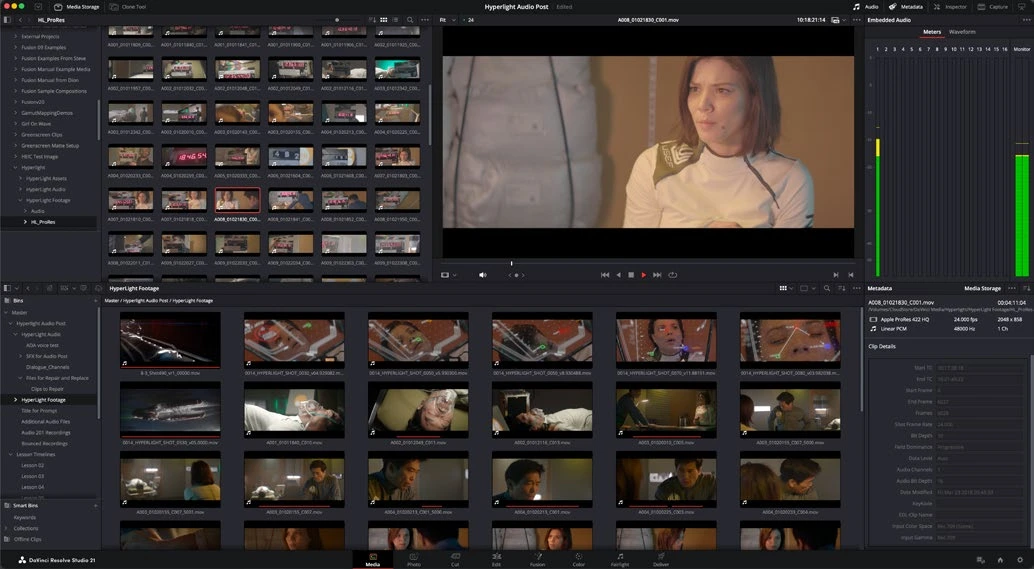
ACTUAL RESOLVE INTERFACEView full size ↗
Step by step
- Copy the recording folder to reliable storage and preserve its folder structure, especially for camera formats with sidecar files.
- Open Media or Edit, reveal the Media Pool, then choose File > Import > Media and select your files.
- If Resolve offers to change the project frame rate, accept only when it matches the delivery rate you planned. Decide before building the edit.
- Double-click a video and play it in the source viewer. Check picture, sound, duration, and orientation before dragging it onto a timeline.
Check your result
The source plays correctly and remains available after you save and reopen the project.
Technical reference: DaVinci Resolve 21.1 Reference Manual, Blackmagic Design, September 2026. Screenshot page numbers refer to that manual. Independently written guidance; specific controls may vary by platform and build. Authorship & image credits.