← All 100 how-to guidesGUIDE 008 / 100
SETUP & MEDIA
How to make timeline playback smoother
DaVinci Resolve Studio 21.1 · Original practical guide
Find the bottleneck before changing hardware or quality settings. Source decoding, storage, Fusion, grading, and monitoring can each produce similar-looking stutters.
ACTUAL RESOLVE INTERFACEView full size ↗
Step by step
- Play a short repeatable section and note whether the problem happens everywhere or only on specific clips.
- Temporarily bypass color and Fusion processing. If performance improves, investigate those effects and try render cache.
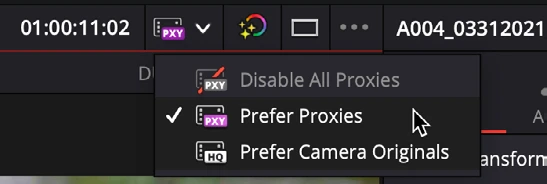
- If bypassing does little, compare proxy media with camera originals and lower Timeline Proxy Resolution for a preview test.
- Verify the source and cache drives are connected and have free space. Repeat the same section after each change and restore final-quality choices before export.
Check your result
You can name which change improved playback and reproduce the improvement on the same section.
Technical reference: DaVinci Resolve 21.1 Reference Manual, Blackmagic Design, September 2026. Screenshot page numbers refer to that manual. Independently written guidance; specific controls may vary by platform and build. Authorship & image credits.