← All 100 how-to guidesGUIDE 003 / 100
SETUP & MEDIA
How to relink missing media
DaVinci Resolve Studio 21.1 · Original practical guide
Relink reconnects existing project clips to files at a new location. Start by confirming the drive and exact originals exist; a red offline image alone does not prove a broken path.
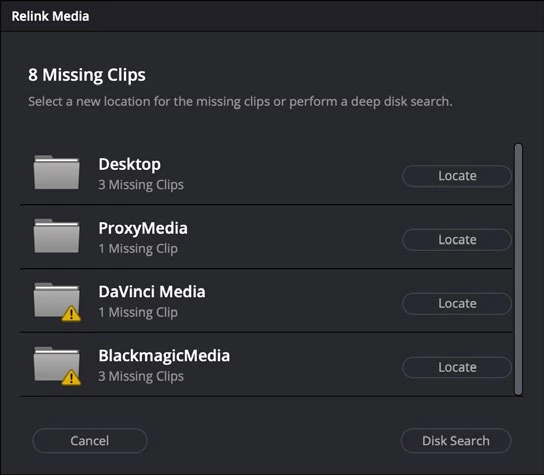
ACTUAL RESOLVE INTERFACEView full size ↗
Step by step
- Mount the media drive and locate one missing original using Finder or Explorer. Confirm its filename, size, and duration.
- Select the offline clips in the Media Pool. Right-click and choose Relink Selected Clips.
- Point Resolve to the folder containing the originals and allow the search to finish. Choose a reasonably narrow folder to avoid ambiguous matches.
- Open several repaired sources and inspect their beginning, middle, and end. Check synced sound and any same-named files from other camera cards.
Check your result
The intended takes play online, with the correct duration and audio, throughout the timeline.
Technical reference: DaVinci Resolve 21.1 Reference Manual, Blackmagic Design, September 2026. Screenshot page numbers refer to that manual. Independently written guidance; specific controls may vary by platform and build. Authorship & image credits.