← All 100 how-to guidesGUIDE 035 / 100
TITLES & SUBTITLES
How to fade a title in and out
DaVinci Resolve Studio 21.1 · Original practical guide
A simple fade can make text feel settled and unobtrusive. The fade should leave enough time at full opacity for the viewer to read.
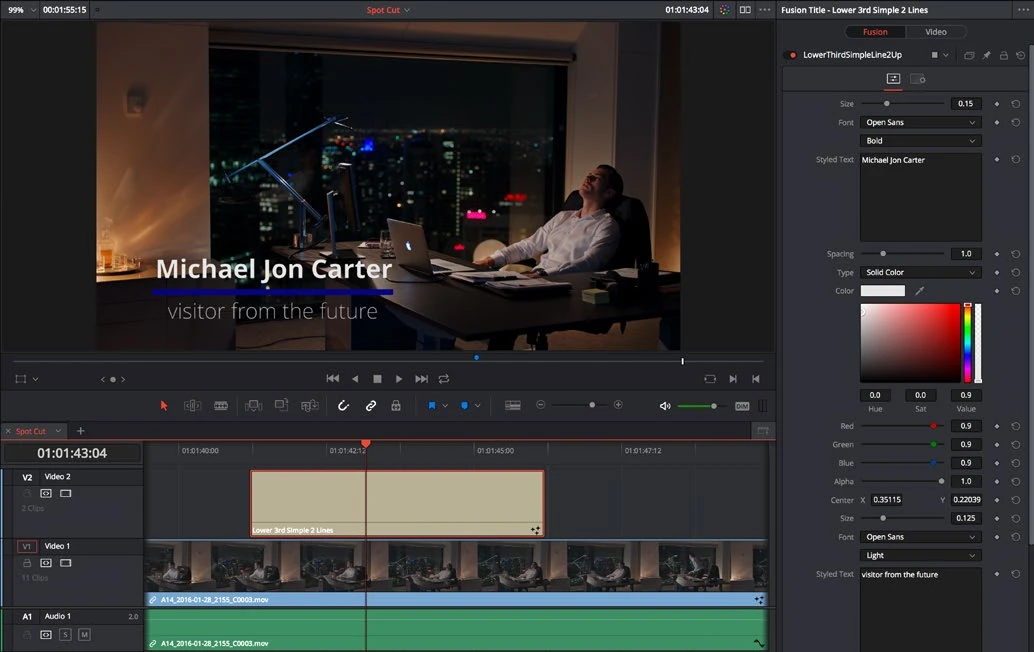
ACTUAL RESOLVE INTERFACEView full size ↗
Step by step
- Place the title above the footage and trim it to its intended full duration.
- Hover near the title clip’s upper corners to reveal the video fade handles. Drag the start handle inward for a fade-in.
- Drag the end handle inward for a fade-out. Keep both fades short enough to leave a clear reading interval between them.
- Play over several background frames and inspect whether the title remains readable during the fade. Adjust duration rather than stacking redundant transitions.
Check your result
The title reaches full visibility, remains readable, and disappears smoothly at the right moment.
Technical reference: DaVinci Resolve 21.1 Reference Manual, Blackmagic Design, September 2026. Screenshot page numbers refer to that manual. Independently written guidance; specific controls may vary by platform and build. Authorship & image credits.