← All 100 how-to guidesGUIDE 036 / 100
TITLES & SUBTITLES
How to make scrolling end credits
DaVinci Resolve Studio 21.1 · Original practical guide
Credit rolls need readable typography and even motion. Their speed comes from the relationship between text length, travel distance, and clip duration.
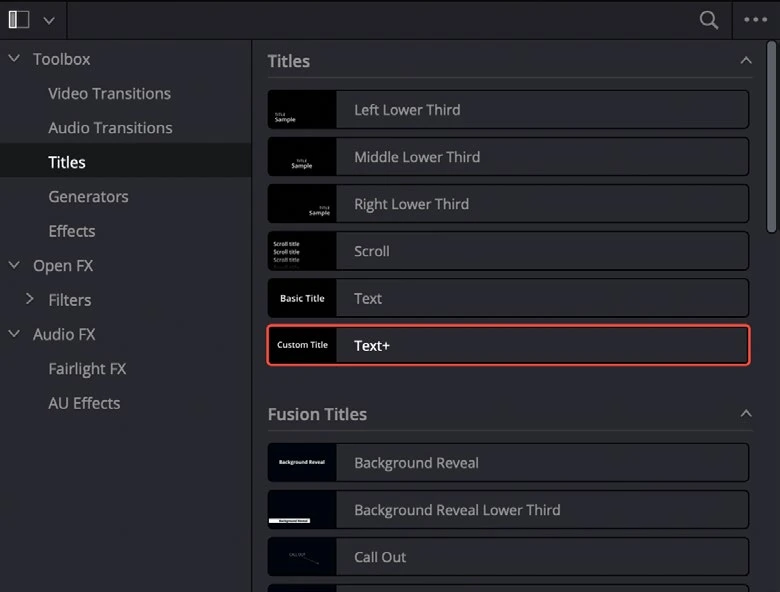
ACTUAL RESOLVE INTERFACEView full size ↗
Step by step
- Add a Scroll title from the Titles library to a track above an appropriate background.
- Enter the credits in a clear hierarchy and use consistent line spacing. Check all names and roles before refining movement.
- Set the title duration, then play the entire roll. Increase duration if viewers cannot read the names at normal speed.
- Inspect the export for flicker or uneven movement and check that the first and last lines fully enter and leave the frame.
Check your result
All credits are readable and the roll finishes cleanly without cutting off its last line.
Technical reference: DaVinci Resolve 21.1 Reference Manual, Blackmagic Design, September 2026. Screenshot page numbers refer to that manual. Independently written guidance; specific controls may vary by platform and build. Authorship & image credits.