← All 100 how-to guidesGUIDE 039 / 100
TITLES & SUBTITLES
How to style subtitles consistently
DaVinci Resolve Studio 21.1 · Original practical guide
Track-level styling keeps captions coherent and makes later changes easier. Use individual caption overrides only when there is a clear reason.
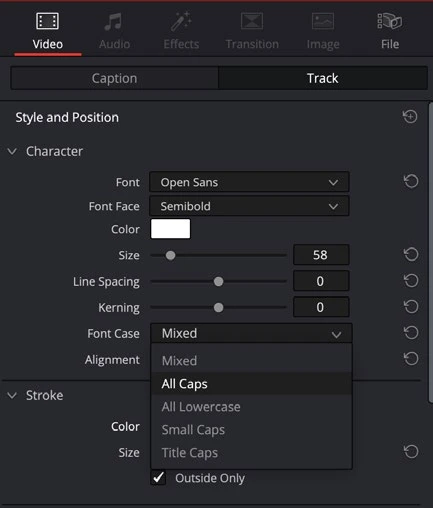
ACTUAL RESOLVE INTERFACEView full size ↗
Step by step
- Select a subtitle clip and open the Inspector’s Track styling controls.
- Set the font, size, alignment, and position for the track. Add an outline or background only as much as necessary for contrast.
- Inspect captions over the lightest and darkest shots. Check long lines, punctuation, and two-line captions near the frame edges.
- Review any clips with their own style overrides and return them to track style when the difference is accidental.
Check your result
The whole subtitle track uses a readable, consistent style at the final output size.
Technical reference: DaVinci Resolve 21.1 Reference Manual, Blackmagic Design, September 2026. Screenshot page numbers refer to that manual. Independently written guidance; specific controls may vary by platform and build. Authorship & image credits.