← All 100 how-to guidesGUIDE 034 / 100
TITLES & SUBTITLES
How to fix a missing or wrong title font
DaVinci Resolve Studio 21.1 · Original practical guide
Projects usually reference installed fonts rather than embedding them. A substitute font can change line breaks, spacing, and the shape of an entire title.
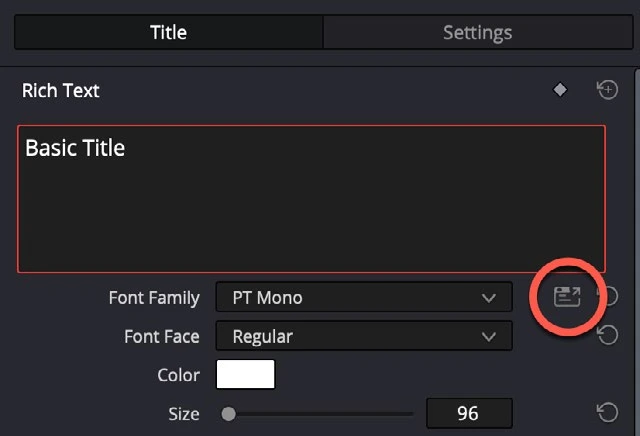
ACTUAL RESOLVE INTERFACEView full size ↗
Step by step
- Select the affected title and note its requested font family and style in the Inspector.
- Confirm that the licensed font is installed through the operating system’s font manager. Check the exact weight, not just the family name.
- Restart Resolve if the font list does not refresh, then reopen the title and choose the intended family and style.
- Review all title instances at their widest text lines and export a sample. Record the font dependency with the project handoff.
Check your result
The exported title matches the intended typeface and no line unexpectedly wraps or clips.
Technical reference: DaVinci Resolve 21.1 Reference Manual, Blackmagic Design, September 2026. Screenshot page numbers refer to that manual. Independently written guidance; specific controls may vary by platform and build. Authorship & image credits.