← All 100 how-to guidesGUIDE 038 / 100
TITLES & SUBTITLES
How to import an SRT subtitle file
DaVinci Resolve Studio 21.1 · Original practical guide
An SRT contains caption text and timing, but not a complete visual design. Make sure its time base and start offset match your edited program.
ACTUAL RESOLVE INTERFACEView full size ↗
Step by step
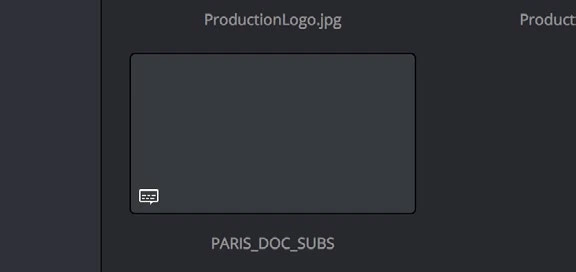
- Import the SRT into the Media Pool using the media-import command or drag it into the pool.
- Place the subtitle item on a subtitle track in the target timeline, aligned with the start time used when it was created.
- Play the first spoken line and another near the end. Check whether any mismatch is a constant offset or timing drift.
- Correct placement or caption timing as needed, then apply a readable track style in the subtitle Inspector.
Check your result
Early and late captions both align with the dialogue and special characters display correctly.
Technical reference: DaVinci Resolve 21.1 Reference Manual, Blackmagic Design, September 2026. Screenshot page numbers refer to that manual. Independently written guidance; specific controls may vary by platform and build. Authorship & image credits.