← All 100 how-to guidesGUIDE 040 / 100
TITLES & SUBTITLES
How to burn subtitles into a video
DaVinci Resolve Studio 21.1 · Original practical guide
Burned-in subtitles become visible pixels in the movie and cannot be switched off by the viewer. Keep an uncaptioned master if you will need other language versions.
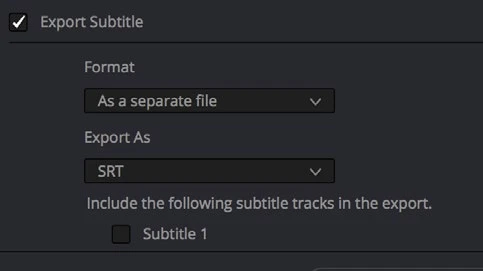
ACTUAL RESOLVE INTERFACEView full size ↗
Step by step
- Proofread the subtitle track and check that the intended track is active in the timeline.
- On Deliver, open the subtitle export settings and enable Export Subtitle.
- Choose Burn into video and verify the selected subtitle track. Confirm the output resolution so the text size is evaluated correctly.
- Render a short captioned section, open the actual movie in another player, and check the words remain visible without loading a separate subtitle file.
Check your result
The subtitles are visible in the movie itself and match the reviewed timeline styling.
Technical reference: DaVinci Resolve 21.1 Reference Manual, Blackmagic Design, September 2026. Screenshot page numbers refer to that manual. Independently written guidance; specific controls may vary by platform and build. Authorship & image credits.