← All 100 how-to guidesGUIDE 032 / 100
TITLES & SUBTITLES
How to use Text+ for a more flexible title
DaVinci Resolve Studio 21.1 · Original practical guide
Text+ is a Fusion-based title with more layout and shading controls. It is useful when a basic title cannot provide the animation or typography you need.
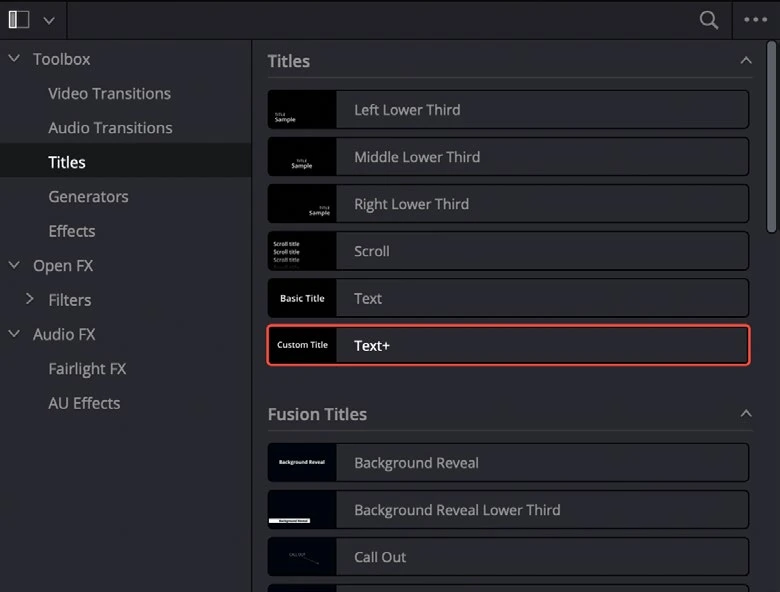
ACTUAL RESOLVE INTERFACEView full size ↗
Step by step
- Drag Text+ from the Titles library onto a track above your footage. Select the new title clip.
- Enter your wording and choose a supported font in the Inspector. Start with a simple layout and confirm the full text fits.
- Adjust layout, character spacing, and shading deliberately. Change one group of settings at a time so you can identify its effect.
- Animate only the controls needed for the design, then preview the complete title. Cache it if playback cannot show the timing accurately.
Check your result
The text remains legible and its animation plays correctly from the title clip’s first frame.
Technical reference: DaVinci Resolve 21.1 Reference Manual, Blackmagic Design, September 2026. Screenshot page numbers refer to that manual. Independently written guidance; specific controls may vary by platform and build. Authorship & image credits.