← All 100 how-to guidesGUIDE 037 / 100
TITLES & SUBTITLES · STUDIO REQUIRED
How to generate automatic subtitles
DaVinci Resolve Studio 21.1 · Original practical guide
Automatic subtitles provide a first transcript, not finished captions. Proofreading, speaker meaning, and timing still need a human pass.
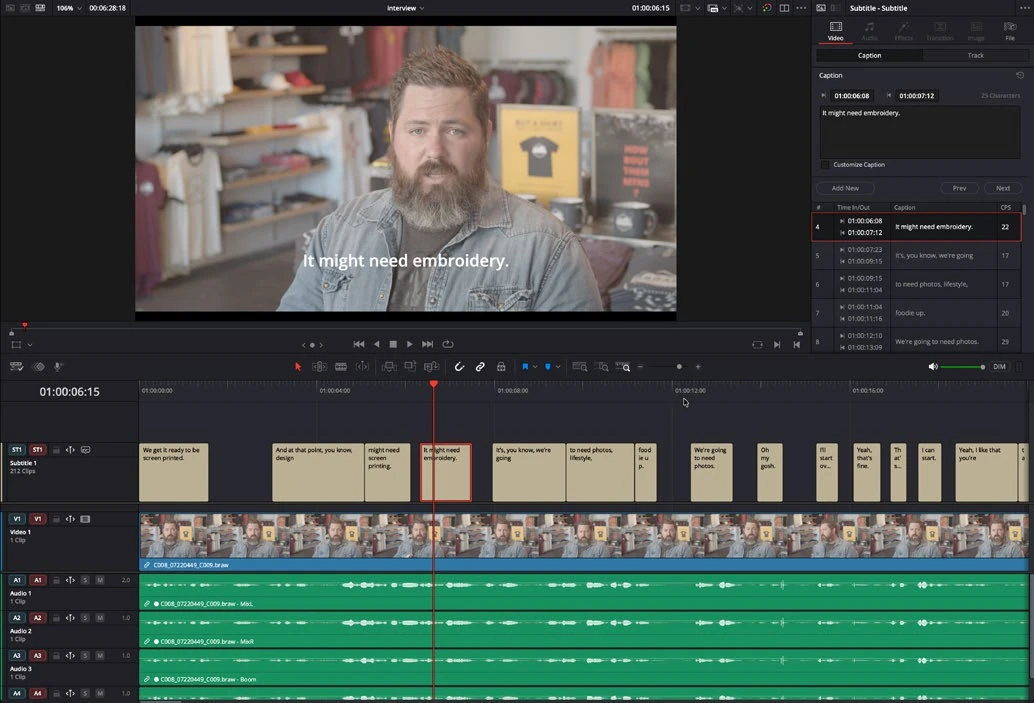
ACTUAL RESOLVE INTERFACEView full size ↗
Step by step
- Open the intended timeline and make sure the dialogue you want transcribed is audible. Remove or mute unrelated scratch recordings.
- Use Timeline > Create Subtitles from Audio. Choose the language and available caption-generation options appropriate to the material.
- Generate the subtitle track, then review every caption against the audio. Correct names, punctuation, technical terms, and transcription mistakes.
- Trim caption boundaries and improve line breaks. Watch the entire sequence at normal speed before selecting a delivery format.
Check your result
The captions match the actual speech, appear at the right time, and remain readable.
Technical reference: DaVinci Resolve 21.1 Reference Manual, Blackmagic Design, September 2026. Screenshot page numbers refer to that manual. Independently written guidance; specific controls may vary by platform and build. Authorship & image credits.