← All 100 how-to guidesGUIDE 023 / 100
FRAMING & MOTION
How to rotate or flip a video
DaVinci Resolve Studio 21.1 · Original practical guide
Use rotation for orientation correction and flip for mirroring. Mirroring also reverses writing and can change the apparent direction of movement across a cut.
ACTUAL RESOLVE INTERFACEView full size ↗
Step by step
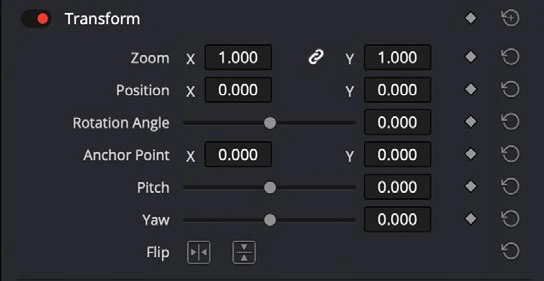
- Select the clip and open the Video Inspector’s Transform section. Note the current rotation and zoom before changing them.
- Set Rotation Angle to the required amount. For a quarter turn, use an exact 90 or −90 degrees rather than dragging approximately.
- Use the horizontal or vertical Flip controls only when the image needs mirroring. Inspect signs, logos, and any visible writing.
- Adjust Zoom and Position if rotation exposes frame edges, then review the transition into the next shot.
Check your result
The subject is upright or intentionally mirrored, with no unexpected empty corners.
Technical reference: DaVinci Resolve 21.1 Reference Manual, Blackmagic Design, September 2026. Screenshot page numbers refer to that manual. Independently written guidance; specific controls may vary by platform and build. Authorship & image credits.