← All 100 how-to guidesGUIDE 022 / 100
FRAMING & MOTION
How to zoom and reposition a clip
DaVinci Resolve Studio 21.1 · Original practical guide
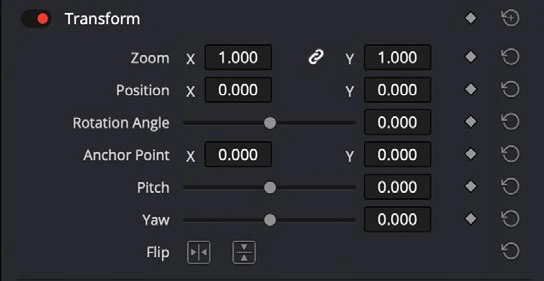
Transform controls change a clip’s size and placement in the frame. A linked X/Y zoom preserves proportions; independent scaling can distort the picture.
ACTUAL RESOLVE INTERFACEView full size ↗
Step by step
- Select the timeline clip and open Inspector > Video > Transform. Confirm the chain between Zoom X and Y is enabled for proportional scaling.
- Increase Zoom slightly, then adjust Position X and Y to frame the subject. Use the viewer transform overlay if you prefer dragging.
- Inspect the shot at normal viewing size and at full resolution. Avoid enlarging low-resolution material more than the delivery can tolerate.
- Play the clip to check moving subjects and remove accidental transform keyframes if you wanted a static composition.
Check your result
The framing is consistent and circles or faces are not stretched.
Technical reference: DaVinci Resolve 21.1 Reference Manual, Blackmagic Design, September 2026. Screenshot page numbers refer to that manual. Independently written guidance; specific controls may vary by platform and build. Authorship & image credits.