← All 100 how-to guidesGUIDE 041 / 100
AUDIO & DIALOGUE
How to add background music to a video
DaVinci Resolve Studio 21.1 · Original practical guide
Music belongs on its own track so you can control its level, timing, and fades without disturbing dialogue. Use music you are licensed to include in the finished work.
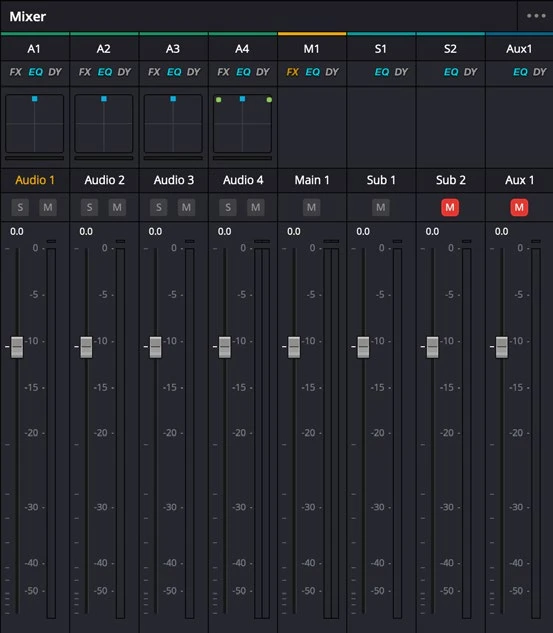
ACTUAL RESOLVE INTERFACEView full size ↗
Step by step
- Import the music file and preview it in the source viewer. Find a useful start and a musical ending before placing it.
- Drag the chosen range onto a stereo audio track below the dialogue and rename the track Music.
- Trim and move the music to support the scene. Lower its clip level or track fader until speech is easy to understand.
- Add fades at the opening and end, then listen on headphones and a small speaker. Check the bus meters for clipping.
Check your result
Music supports the edit and never obscures an important word or ends with an accidental abrupt cut.
Technical reference: DaVinci Resolve 21.1 Reference Manual, Blackmagic Design, September 2026. Screenshot page numbers refer to that manual. Independently written guidance; specific controls may vary by platform and build. Authorship & image credits.