← All 100 how-to guidesGUIDE 017 / 100
EDITING ESSENTIALS
How to duplicate a timeline before a revision
DaVinci Resolve Studio 21.1 · Original practical guide
A timeline duplicate preserves an edit version within the same project. It shares source media, so it is quick and does not double the footage on disk.
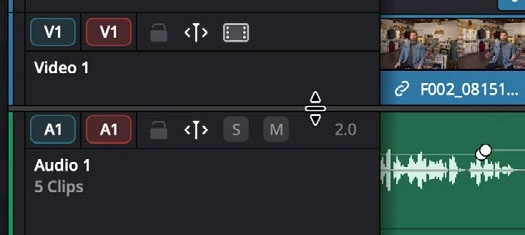
ACTUAL RESOLVE INTERFACEView full size ↗
Step by step
- Find the intended timeline in the Media Pool and confirm its name matches the timeline currently open.
- Right-click it and choose Duplicate Timeline. Rename the copy with a clear version or purpose, such as Interview_v03_short.
- Open the duplicate and make a small identifiable change. Check the timeline tab or name before continuing substantial work.
- Return briefly to the original timeline to verify its arrangement is still intact, then resume in the named copy.
Check your result
The original and revised arrangements are independently accessible in the Media Pool.
Technical reference: DaVinci Resolve 21.1 Reference Manual, Blackmagic Design, September 2026. Screenshot page numbers refer to that manual. Independently written guidance; specific controls may vary by platform and build. Authorship & image credits.