← All 100 how-to guidesGUIDE 014 / 100
EDITING ESSENTIALS
How to remove a gap between clips
DaVinci Resolve Studio 21.1 · Original practical guide
A timeline gap can be closed without manually dragging everything after it. Check whether the space is empty on every relevant track before collapsing it.
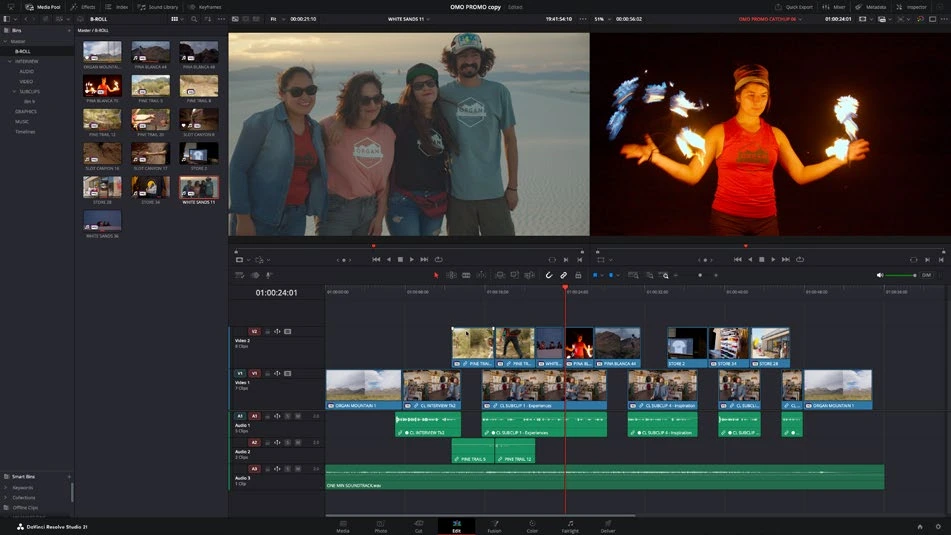
ACTUAL RESOLVE INTERFACEView full size ↗
Step by step
- Zoom in and select the blank gap between clips on the relevant video or audio track.
- Inspect higher video tracks and other audio tracks for material crossing the gap. Decide whether that material should move.
- Use the gap’s contextual ripple-delete action, or select the gap and invoke Ripple Delete from the Edit menu.
- Play the join and inspect later sync points. If the operation moved only part of the intended sequence, undo and review track participation.
Check your result
The clips meet cleanly and material on other tracks remains correctly synchronized.
← PREVIOUS GUIDERipple trim without leaving a gapNEXT GUIDE →Insert a clip without overwriting the edit
Technical reference: DaVinci Resolve 21.1 Reference Manual, Blackmagic Design, September 2026. Screenshot page numbers refer to that manual. Independently written guidance; specific controls may vary by platform and build. Authorship & image credits.