← All 100 how-to guidesGUIDE 087 / 100
EXPORT & DELIVERY
How to export a video with a transparent background
DaVinci Resolve Studio 21.1 · Original practical guide
Transparency requires an alpha-capable codec and actual alpha in the image. Ordinary H.264 MP4 is not a suitable transparent master.
ACTUAL RESOLVE INTERFACEView full size ↗
Step by step
- Confirm the timeline or Fusion result is transparent where the background should disappear. Test it over a temporary colored layer.
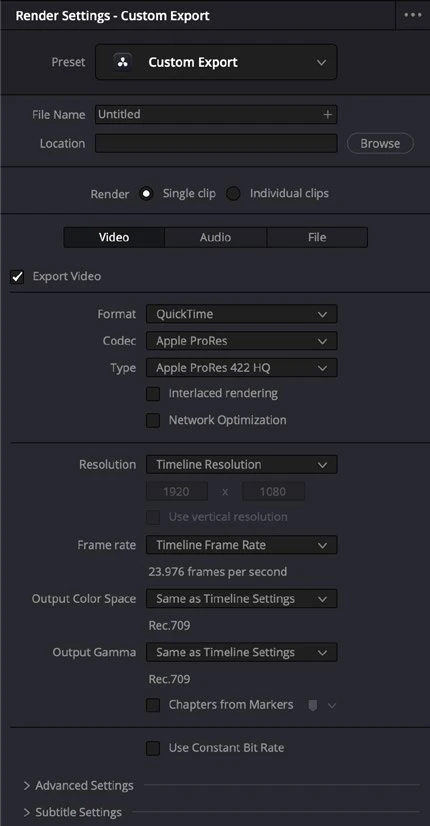
- On Deliver, choose a format and codec that support alpha on your platform, such as an available ProRes 4444 or appropriate image-sequence option.
- Enable Export Alpha and choose the alpha interpretation required by the receiving application. Remove the temporary test background before rendering.
- Reimport the export above another image and check edges, duration, and transparency. Test the receiving application before delivering the complete asset.
Check your result
The exported graphic composites cleanly over another image without a baked-in rectangle.
Technical reference: DaVinci Resolve 21.1 Reference Manual, Blackmagic Design, September 2026. Screenshot page numbers refer to that manual. Independently written guidance; specific controls may vary by platform and build. Authorship & image credits.