← All 100 how-to guidesGUIDE 086 / 100
EXPORT & DELIVERY
How to export audio only as a WAV file
DaVinci Resolve Studio 21.1 · Original practical guide
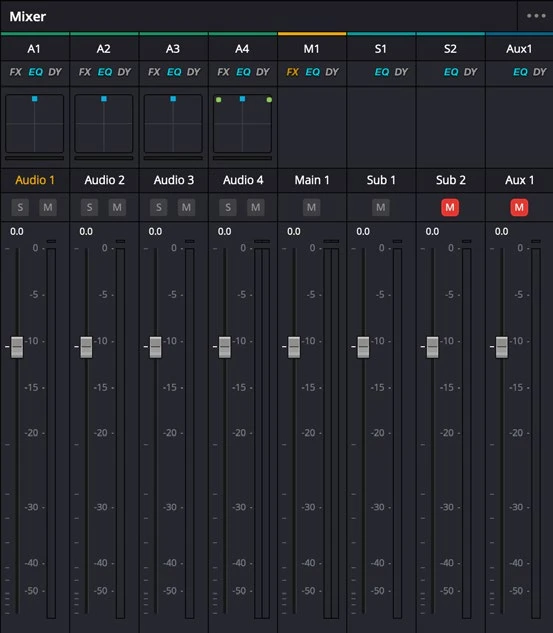
An audio-only export is useful for a mix review or a delivery stem. The selected bus determines which sounds are included.
ACTUAL RESOLVE INTERFACEView full size ↗
Step by step
- Open Deliver and select an audio-only preset or disable Export Video in a custom job.
- Enable Export Audio and choose Wave with a suitable PCM bit depth and sample rate for the receiving workflow.
- Select the correct output bus or tracks and confirm channel layout. Set the full program range when the file must align with picture.
- Render and reimport the WAV at the same start position. Check sync, duration, channel content, and the ending sound tail.
Check your result
The WAV contains the intended mix and lines up with the picture from beginning to end.
← PREVIOUS GUIDEExport timeline clips as individual filesNEXT GUIDE →Export a video with a transparent background
Technical reference: DaVinci Resolve 21.1 Reference Manual, Blackmagic Design, September 2026. Screenshot page numbers refer to that manual. Independently written guidance; specific controls may vary by platform and build. Authorship & image credits.