← All 100 how-to guidesGUIDE 088 / 100
EXPORT & DELIVERY
How to export an SRT subtitle sidecar
DaVinci Resolve Studio 21.1 · Original practical guide
A subtitle sidecar keeps captions separate from the movie so viewers or platforms can switch them on and off. Plain SRT carries text and timing rather than your complete on-screen design.
ACTUAL RESOLVE INTERFACEView full size ↗
Step by step
- Proofread the final subtitle track and confirm it matches the locked edit and chosen program start.
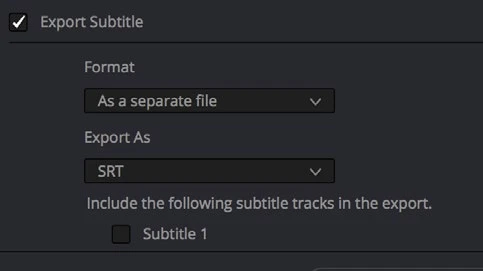
- In Deliver, enable Export Subtitle and choose As a separate file with SRT as the export type.
- Select the intended subtitle track and give the movie and sidecar matching, unambiguous version names.
- Render or export the captions, then load the SRT with the finished movie in a compatible player. Check the first, middle, and final spoken lines.
Check your result
The sidecar displays the right words at the right time without being permanently burned into the image.
Technical reference: DaVinci Resolve 21.1 Reference Manual, Blackmagic Design, September 2026. Screenshot page numbers refer to that manual. Independently written guidance; specific controls may vary by platform and build. Authorship & image credits.