← All 100 how-to guidesGUIDE 084 / 100
EXPORT & DELIVERY
How to export only part of a timeline
DaVinci Resolve Studio 21.1 · Original practical guide
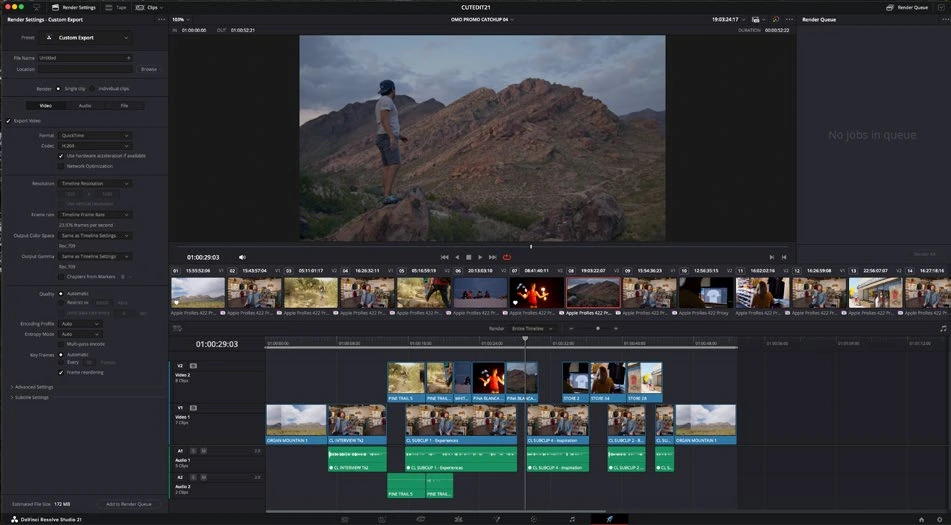
An In/Out range lets you render a section for review or a short deliverable. Remember to restore the whole-timeline range for the final master.
ACTUAL RESOLVE INTERFACEView full size ↗
Step by step
- Position the playhead at the intended first frame and mark In. Move to the intended last frame and mark Out.
- On Deliver, choose the In/Out range rather than Entire Timeline. Inspect the displayed start, end, and duration.
- Set filename and destination so the partial render cannot overwrite an approved full-length master.
- Add to the Render Queue, render, and open the actual file. Check its first and last frames and any sound tail at the ending.
Check your result
The exported duration and boundary frames match the selected section.
← PREVIOUS GUIDEExport a vertical video for social mediaNEXT GUIDE →Export timeline clips as individual files
Technical reference: DaVinci Resolve 21.1 Reference Manual, Blackmagic Design, September 2026. Screenshot page numbers refer to that manual. Independently written guidance; specific controls may vary by platform and build. Authorship & image credits.