← All 100 how-to guidesGUIDE 081 / 100
EXPORT & DELIVERY
How to export an MP4 video
DaVinci Resolve Studio 21.1 · Original practical guide
MP4 is a container; H.264 or H.265 is the video codec inside it. For a broadly compatible review copy, begin with a simple H.264 export and verify the actual file.
ACTUAL RESOLVE INTERFACEView full size ↗
Step by step
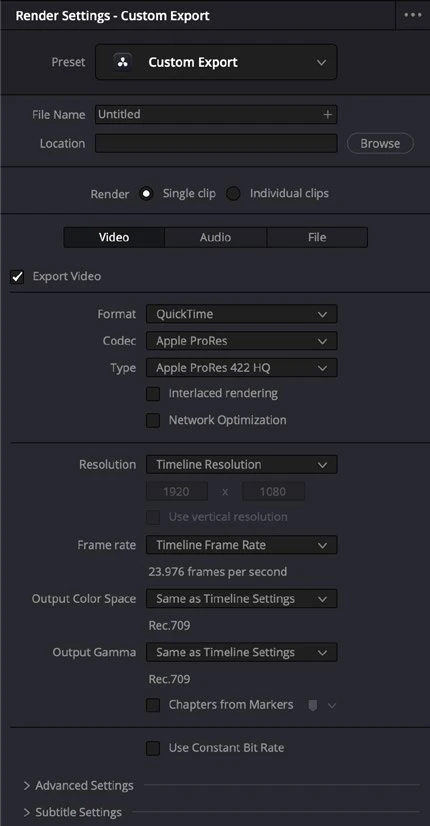
- Open Deliver and select Custom Export. Enter a clear filename and a writable destination folder.
- Choose Single Clip, Format MP4, and Codec H.264 when available on your system. Set resolution and frame rate to the intended delivery specification.
- Enable audio export and select the intended mix bus and compatible audio codec. Confirm the render range is the whole timeline or your deliberate selection.
- Add the job to the Render Queue and render it. Open the completed file independently and check picture, sound, duration, and captions.
Check your result
The MP4 opens in the target player and contains the expected complete program.
Technical reference: DaVinci Resolve 21.1 Reference Manual, Blackmagic Design, September 2026. Screenshot page numbers refer to that manual. Independently written guidance; specific controls may vary by platform and build. Authorship & image credits.