← All 100 how-to guidesGUIDE 095 / 100
FIXES & PROJECT SAFETY
How to fix dialogue playing in only one ear
DaVinci Resolve Studio 21.1 · Original practical guide
A single microphone is often mono even when the recording container has two channels. Map the recorded channel correctly instead of treating silence on the other side as missing dialogue.
ACTUAL RESOLVE INTERFACEView full size ↗
Step by step
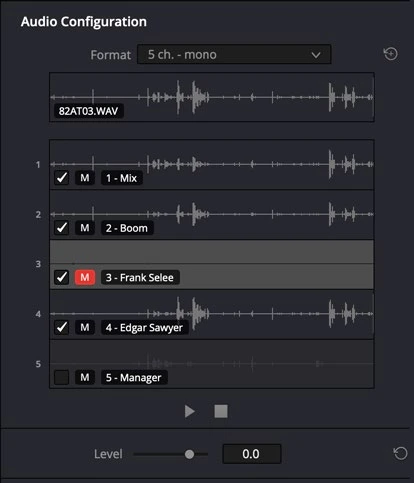
- Listen to each source channel and identify which one contains the intended microphone recording.
- In the Media Pool, open Clip Attributes > Audio and configure a mono channel mapping to the correct embedded source channel when appropriate.
- Place the result on a mono audio track and center its pan into the stereo mix bus.
- Play the timeline and a short stereo export through headphones. Confirm the voice is centered and any unwanted or empty channel is excluded.
Check your result
The microphone is heard centrally through both sides of the stereo output without duplicated or phasey sound.
← PREVIOUS GUIDERemove an unexpected Studio watermarkNEXT GUIDE →Diagnose audio drifting out of sync
Technical reference: DaVinci Resolve 21.1 Reference Manual, Blackmagic Design, September 2026. Screenshot page numbers refer to that manual. Independently written guidance; specific controls may vary by platform and build. Authorship & image credits.