← All 100 how-to guidesGUIDE 094 / 100
FIXES & PROJECT SAFETY
How to remove an unexpected Studio watermark
DaVinci Resolve Studio 21.1 · Original practical guide
A Resolve watermark can appear when Studio-only processing is used in the free edition. Identify the effect and edition rather than attempting to hide the watermark in the image.
ACTUAL RESOLVE INTERFACEView full size ↗
Step by step
- Check About DaVinci Resolve to confirm whether the running application is the free or Studio edition.
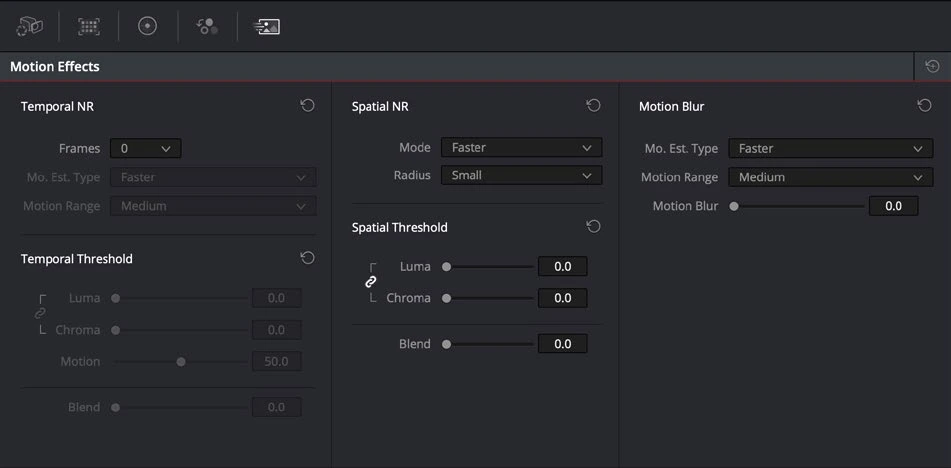
- Inspect the affected clip’s effects, retiming options, and Color or Fusion processing for Studio-only features.
- If you own Studio, install and activate the correct Studio application using your legitimate license. Reopen the project and verify the processing is available.
- Otherwise, disable or replace the restricted effect with an available technique, then render a short test from the affected section.
Check your result
The test export is watermark-free because its effects are supported by the running edition.
← PREVIOUS GUIDEInvestigate washed-out export colorsNEXT GUIDE →Fix dialogue playing in only one ear
Technical reference: DaVinci Resolve 21.1 Reference Manual, Blackmagic Design, September 2026. Screenshot page numbers refer to that manual. Independently written guidance; specific controls may vary by platform and build. Authorship & image credits.