← All 100 how-to guidesGUIDE 098 / 100
FIXES & PROJECT SAFETY
How to restore an earlier project backup
DaVinci Resolve Studio 21.1 · Original practical guide
Restore into a separate recovery project so you can compare before replacing anything. A backup’s timestamp helps identify a useful state, but its contents still need checking.
ACTUAL RESOLVE INTERFACEView full size ↗
Step by step
- Preserve the current project with an export or separate copy, then open Project Manager.
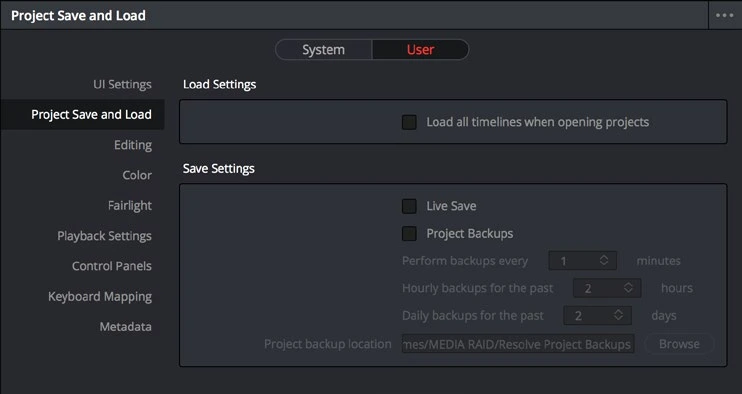
- Right-click the affected project and open Project Backups. Choose a recovery point from before the unwanted change.
- Load the backup under a distinct recovery name when prompted. Inspect the specific timeline, grade, or setting you needed to recover.
- Confirm media access and compare with the current version. Continue in the verified recovery copy or transfer the required work deliberately.
Check your result
The recovered project contains the intended earlier state and the current project remains available for comparison.
← PREVIOUS GUIDETroubleshoot a render that fails at the same pointNEXT GUIDE →Move a project to another computer
Technical reference: DaVinci Resolve 21.1 Reference Manual, Blackmagic Design, September 2026. Screenshot page numbers refer to that manual. Independently written guidance; specific controls may vary by platform and build. Authorship & image credits.