← All 100 how-to guidesGUIDE 093 / 100
FIXES & PROJECT SAFETY
How to investigate washed-out export colors
DaVinci Resolve Studio 21.1 · Original practical guide
An export can look different because of transforms, data levels, metadata, or the player’s color management. Use a controlled comparison before altering the creative grade.
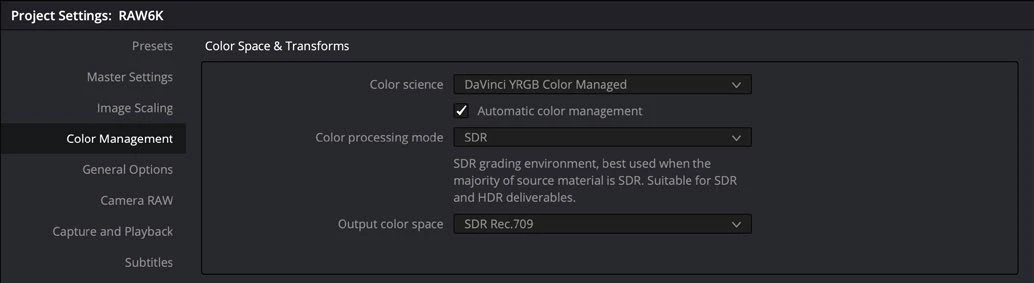
ACTUAL RESOLVE INTERFACEView full size ↗
Step by step
- Confirm the timeline’s input, working, and output color settings. Check for a conversion LUT or CST that duplicates a managed transform.
- Render a short sample with the intended output tags and data-level settings. Keep the grade unchanged during the test.
- Reimport the sample with the correct interpretation and compare it to the timeline using scopes and a consistent monitoring path.
- Compare another color-aware player and inspect operating-system display behavior. Document which viewing path differs before deciding whether settings need correction.
Check your result
You can distinguish a changed encoded signal from a player or display interpretation difference.
← PREVIOUS GUIDEFix media offline appearing only in an exportNEXT GUIDE →Remove an unexpected Studio watermark
Technical reference: DaVinci Resolve 21.1 Reference Manual, Blackmagic Design, September 2026. Screenshot page numbers refer to that manual. Independently written guidance; specific controls may vary by platform and build. Authorship & image credits.