← All 100 how-to guidesGUIDE 100 / 100
FIXES & PROJECT SAFETY
How to reset a confusing workspace layout
DaVinci Resolve Studio 21.1 · Original practical guide
A panel can disappear because of a layout, display, or workspace change. Restore the interface before assuming the project or media has been damaged.
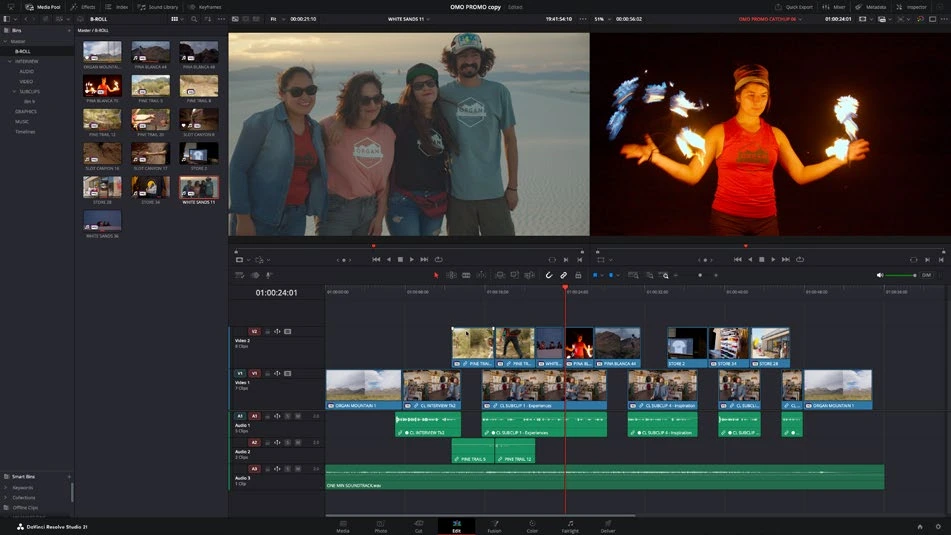
ACTUAL RESOLVE INTERFACEView full size ↗
Step by step
- Save the project and note whether the missing panel belongs to the current page. Switch to Edit for a familiar starting point.
- Use Workspace > Reset UI Layout to restore the default arrangement.
- Toggle the needed panels, such as Media Pool, Inspector, or Mixer, from their page controls. Check dual-screen settings if panels appear to be on a disconnected display.
- Resize the working panels and save a workspace preset when the arrangement is useful. Reopen the page to confirm it remains accessible.
Check your result
The expected viewer, timeline, and controls are visible and usable on the connected display.
Technical reference: DaVinci Resolve 21.1 Reference Manual, Blackmagic Design, September 2026. Screenshot page numbers refer to that manual. Independently written guidance; specific controls may vary by platform and build. Authorship & image credits.