← All 100 how-to guidesGUIDE 048 / 100
AUDIO & DIALOGUE
How to fix no sound during playback
DaVinci Resolve Studio 21.1 · Original practical guide
Follow the signal from clip to speaker. Meters help separate a missing audio signal from a monitoring-device problem.
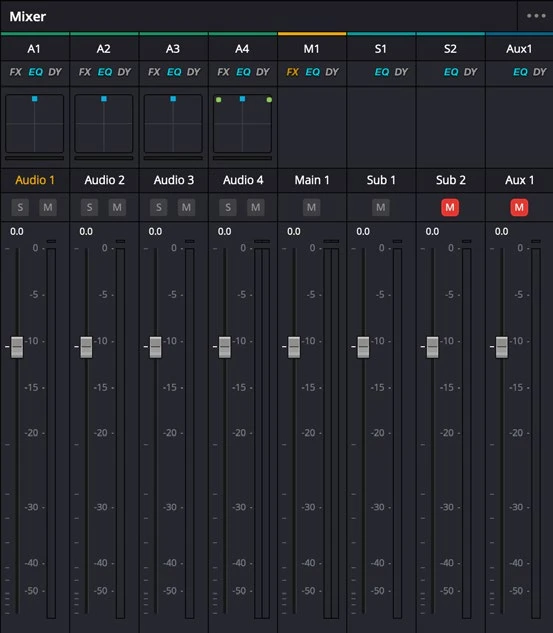
ACTUAL RESOLVE INTERFACEView full size ↗
Step by step
- Play a known audible section and inspect the clip waveform and track meter. Check clip gain, mute, and whether the track is enabled.
- If the track meter moves, inspect the main bus meter and confirm the track is routed to the intended output bus.
- If the bus meter moves but nothing is heard, check Resolve’s monitoring mute, output level, and Preferences > Video and Audio I/O device selection.
- Test a known good audio file and a short export. Compare it in another player to distinguish timeline routing from local speaker configuration.
Check your result
You can hear the intended mix and identify which part of the signal path caused the silence.
Technical reference: DaVinci Resolve 21.1 Reference Manual, Blackmagic Design, September 2026. Screenshot page numbers refer to that manual. Independently written guidance; specific controls may vary by platform and build. Authorship & image credits.