← All 100 how-to guidesGUIDE 046 / 100
AUDIO & DIALOGUE · STUDIO REQUIRED
How to reduce background noise with Voice Isolation
DaVinci Resolve Studio 21.1 · Original practical guide
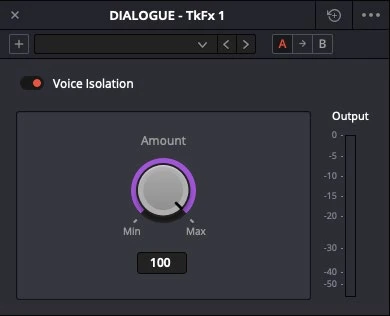
Voice Isolation can suppress unwanted sound around speech. The most useful setting is often less than maximum because aggressive processing can damage the voice.
ACTUAL RESOLVE INTERFACEView full size ↗
Step by step
- Select a dialogue clip and open its Audio Inspector, or use the appropriate Fairlight track processing controls.
- Enable Voice Isolation and play a section containing both speech and background noise.
- Increase the Amount only as far as needed. Compare breaths, word endings, and quiet syllables against the bypassed recording.
- Listen at matched volume in the complete mix and render a short test before applying the same setting to many clips.
Check your result
The words are clearer while the speaker still sounds natural and intelligible.
Technical reference: DaVinci Resolve 21.1 Reference Manual, Blackmagic Design, September 2026. Screenshot page numbers refer to that manual. Independently written guidance; specific controls may vary by platform and build. Authorship & image credits.