← All 100 how-to guidesGUIDE 042 / 100
AUDIO & DIALOGUE
How to separate video from its linked audio
DaVinci Resolve Studio 21.1 · Original practical guide
Linked clips normally select together to preserve synchronization. You can temporarily select them separately or permanently unlink them when the edit requires independent control.
ACTUAL RESOLVE INTERFACEView full size ↗
Step by step
- Select the video and its attached audio on the timeline. Confirm they are the intended pair before changing their relationship.
- For a temporary independent edit, disable Linked Selection in the timeline toolbar. Select and move only the component you need.
- For a lasting unlink, use the selected clips’ Link Clips contextual command to remove their link.
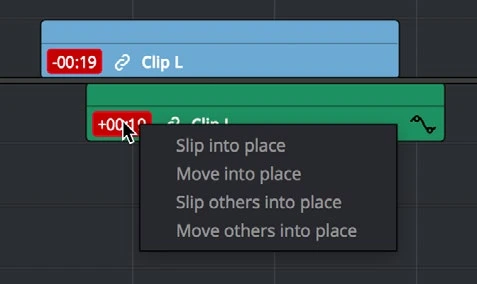
- After the edit, check the original sync point and any red out-of-sync offset indicators. Re-enable Linked Selection for normal editing.
Check your result
You can edit the intended audio separately without moving or deleting the picture unintentionally.
Technical reference: DaVinci Resolve 21.1 Reference Manual, Blackmagic Design, September 2026. Screenshot page numbers refer to that manual. Independently written guidance; specific controls may vary by platform and build. Authorship & image credits.