← All 100 how-to guidesGUIDE 050 / 100
AUDIO & DIALOGUE
How to record a voiceover directly in Resolve
DaVinci Resolve Studio 21.1 · Original practical guide
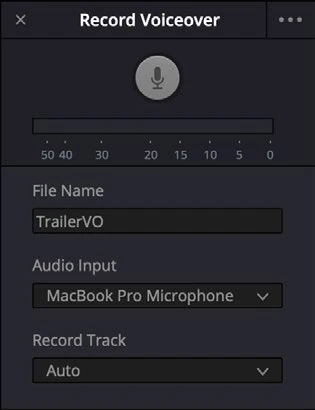
The Edit page voiceover tool provides a quick recording workflow. Establish a clean input and sensible level before recording a full narration.
ACTUAL RESOLVE INTERFACEView full size ↗
Step by step
- Connect the microphone, allow operating-system microphone access, and check the input device in Resolve’s audio preferences.
- On Edit, open the Record Voiceover tool. Choose the audio input, destination track, and a descriptive take name.
- Make a short test recording while watching the level. Listen for clipping, room noise, and feedback from speakers; use headphones while recording.
- Place the playhead at the intended start and record the take. Review it, trim unwanted lead-in, and preserve useful alternate takes before cleaning up.
Check your result
The new recording appears on the intended track and plays at a clean, intelligible level.
← PREVIOUS GUIDEDuck music underneath dialogueNEXT GUIDE →Correct exposure with the primary controls
Technical reference: DaVinci Resolve 21.1 Reference Manual, Blackmagic Design, September 2026. Screenshot page numbers refer to that manual. Independently written guidance; specific controls may vary by platform and build. Authorship & image credits.