← All 100 how-to guidesGUIDE 068 / 100
ADVANCED COLOR
How to match two shots in the same scene
DaVinci Resolve Studio 21.1 · Original practical guide
A match is about the relationship across a cut: exposure, balance, contrast, and color intensity. The two images do not need identical scope shapes.
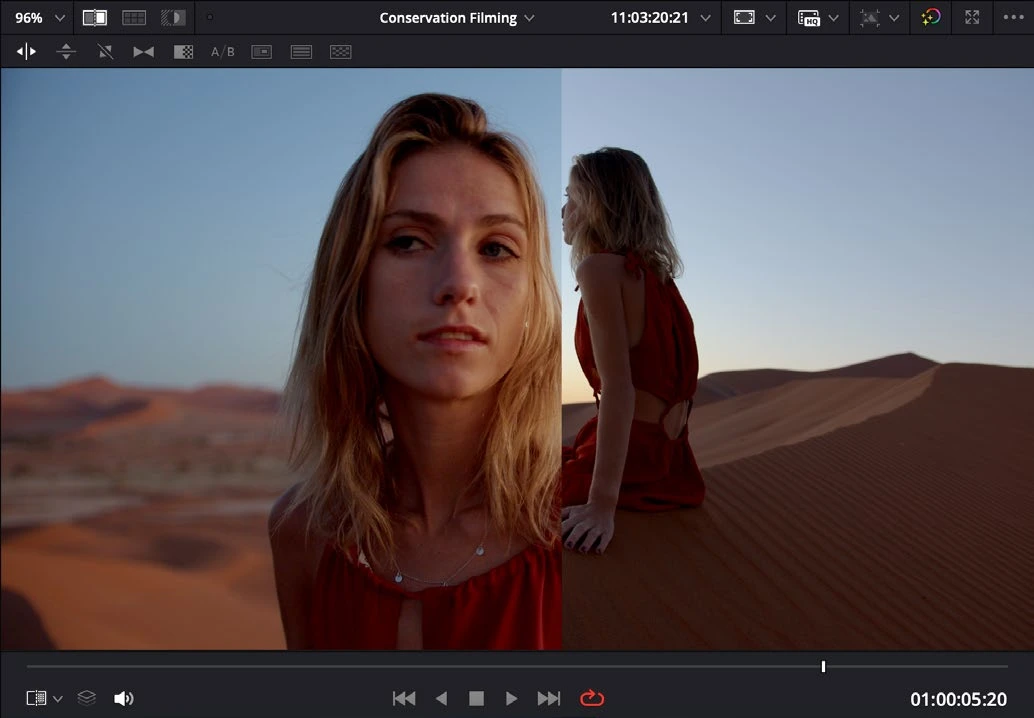
ACTUAL RESOLVE INTERFACEView full size ↗
Step by step
- Choose a reference shot that represents the scene’s intended look and save a Gallery still.
- Bring the second shot into the same color pipeline and compare them with a wipe or split-screen view.
- Match broad exposure and white balance first, then contrast and saturation. Use familiar objects or skin under comparable light as anchors.
- Turn the comparison off and play across the cut repeatedly. Refine any sudden change in subject brightness or color that distracts from the scene.
Check your result
The cut feels visually continuous while preserving real differences in camera angle and lighting.
Technical reference: DaVinci Resolve 21.1 Reference Manual, Blackmagic Design, September 2026. Screenshot page numbers refer to that manual. Independently written guidance; specific controls may vary by platform and build. Authorship & image credits.