← All 100 how-to guidesGUIDE 070 / 100
ADVANCED COLOR
How to create a subtle vignette
DaVinci Resolve Studio 21.1 · Original practical guide
A vignette can direct attention by changing the outer frame. Keep it soft enough that viewers notice the subject rather than a dark ring.
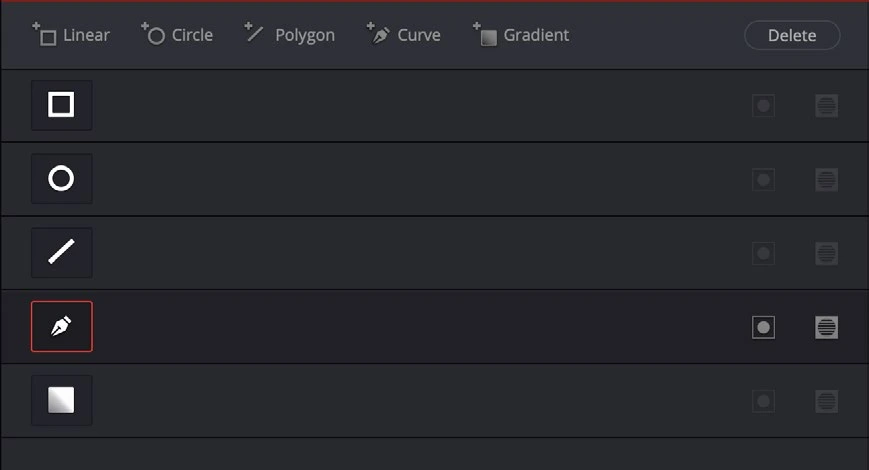
ACTUAL RESOLVE INTERFACEView full size ↗
Step by step
- Add a dedicated Color node and create a circular Power Window around the area you want to emphasize.
- Invert the selection if you want the correction outside the window. Increase softness substantially.
- Lower the outside exposure gently and adjust shape and position to fit the composition rather than automatically centering it.
- Play the shot with overlays hidden. Track or animate the window if subject movement would otherwise reveal the effect.
Check your result
The subject receives more attention without obvious dark corners or a visible mask boundary.
← PREVIOUS GUIDEUse a Color Space Transform correctlyNEXT GUIDE →Combine two images with a Merge node
Technical reference: DaVinci Resolve 21.1 Reference Manual, Blackmagic Design, September 2026. Screenshot page numbers refer to that manual. Independently written guidance; specific controls may vary by platform and build. Authorship & image credits.