← All 100 how-to guidesGUIDE 065 / 100
ADVANCED COLOR · STUDIO REQUIRED
How to remove a background with Magic Mask
DaVinci Resolve Studio 21.1 · Original practical guide
A subject mask can drive transparency rather than just a color correction. This is useful for a cutout, but edge quality and the replacement background determine whether it looks convincing.
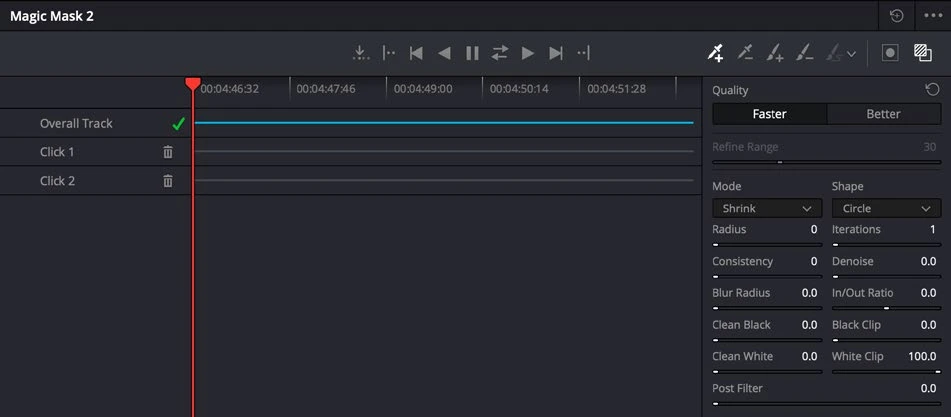
ACTUAL RESOLVE INTERFACEView full size ↗
Step by step
- Build and track a clean Magic Mask selection of the foreground subject on a dedicated Color node.
- Right-click the node graph and add an Alpha Output. Connect the mask-bearing node’s blue key output to that alpha output.
- On Edit, place the replacement background below the foreground clip and inspect the composite.
- Refine the mask edge and review fine detail against both bright and dark backgrounds. If exporting transparency, choose a codec that supports alpha and enable it explicitly.
Check your result
The intended subject remains visible while the original background becomes transparent in the composite.
Technical reference: DaVinci Resolve 21.1 Reference Manual, Blackmagic Design, September 2026. Screenshot page numbers refer to that manual. Independently written guidance; specific controls may vary by platform and build. Authorship & image credits.