← All 100 how-to guidesGUIDE 074 / 100
FUSION & COMPOSITING
How to place a transparent PNG over video
DaVinci Resolve Studio 21.1 · Original practical guide
A PNG with an alpha channel can act as a logo or graphic overlay. A checkerboard baked into an image is not real transparency.
ACTUAL RESOLVE INTERFACEView full size ↗
Step by step
- Import the PNG and inspect it over another image to confirm it has an actual transparent background.
- For a straightforward edit, place it on a video track above the footage and adjust Transform in the Inspector.
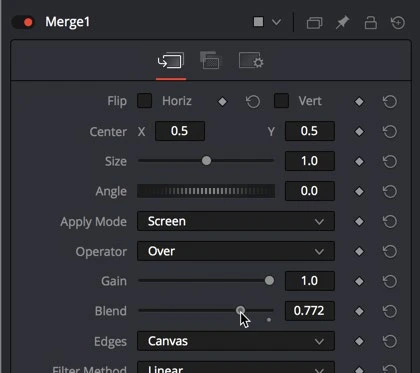
- For Fusion processing, bring it in as a MediaIn, connect it to a Merge foreground, and connect the video to the Merge background.
- Check the edges at final size and set the overlay duration. Render a short sample over both light and dark areas.
Check your result
The graphic appears without an unwanted rectangular background and its edges remain clean.
← PREVIOUS GUIDEEase animation with the Spline editorNEXT GUIDE →Remove a green screen with Delta Keyer
Technical reference: DaVinci Resolve 21.1 Reference Manual, Blackmagic Design, September 2026. Screenshot page numbers refer to that manual. Independently written guidance; specific controls may vary by platform and build. Authorship & image credits.