← All 100 how-to guidesGUIDE 075 / 100
FUSION & COMPOSITING
How to remove a green screen with Delta Keyer
DaVinci Resolve Studio 21.1 · Original practical guide
A key separates the subject from a colored background. Clean lighting and a sharp source matter; no keyer setting can fully recover a subject hidden by spill or compression damage.
ACTUAL RESOLVE INTERFACEView full size ↗
Step by step
- In Fusion, place a DeltaKeyer after the green-screen source and merge its result over the replacement background.
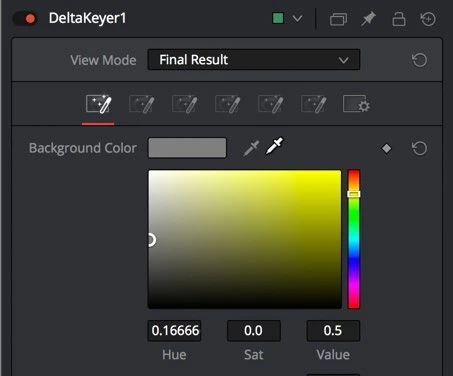
- Use the keyer’s background-color picker to sample a representative green area near the subject, avoiding shadows and clothing.
- Inspect the alpha or matte view. Refine background removal and foreground solidity while preserving hair and transparent details.
- Control green spill and inspect the composite over different backgrounds. Review motion and frame edges before adding final color integration.
Check your result
The background is removed, the foreground stays solid, and fine edges do not chatter in motion.
← PREVIOUS GUIDEPlace a transparent PNG over videoNEXT GUIDE →Track a flat surface with Planar Tracker
Technical reference: DaVinci Resolve 21.1 Reference Manual, Blackmagic Design, September 2026. Screenshot page numbers refer to that manual. Independently written guidance; specific controls may vary by platform and build. Authorship & image credits.