← All 100 how-to guidesGUIDE 076 / 100
FUSION & COMPOSITING
How to track a flat surface with Planar Tracker
DaVinci Resolve Studio 21.1 · Original practical guide
Planar tracking follows a textured surface and its perspective change. It is useful for signs, screens, and patches that move as a plane.
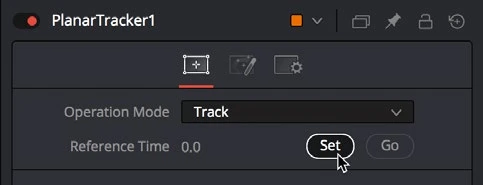
ACTUAL RESOLVE INTERFACEView full size ↗
Step by step
- Add Planar Tracker after the plate and choose a reference frame where the target surface is clearly visible.
- Draw a tracking region over useful surface detail, avoiding moving reflections, people, and objects at a different depth.
- Choose a suitable motion model and track forward and backward through the used range. Stop and correct sections that drift.
- Create a Planar Transform from the solved track when you need to move another image with that surface. Apply it to a test grid before the final artwork.
Check your result
The test graphic stays attached to the same surface corners throughout the shot.
Technical reference: DaVinci Resolve 21.1 Reference Manual, Blackmagic Design, September 2026. Screenshot page numbers refer to that manual. Independently written guidance; specific controls may vary by platform and build. Authorship & image credits.