← All 100 how-to guidesGUIDE 071 / 100
FUSION & COMPOSITING
How to combine two images with a Merge node
DaVinci Resolve Studio 21.1 · Original practical guide
Merge places a foreground over a background. Knowing the input roles makes a Fusion flow much easier to diagnose than connecting nodes by trial and error.
ACTUAL RESOLVE INTERFACEView full size ↗
Step by step
- Bring the foreground and background into the Fusion composition as separate MediaIn nodes or other image sources.
- Add a Merge node. Connect the background to its yellow input and the foreground to its green input.
- Connect Merge to MediaOut and load the Merge result into a viewer. Check that the foreground has useful transparency if it should reveal the background.
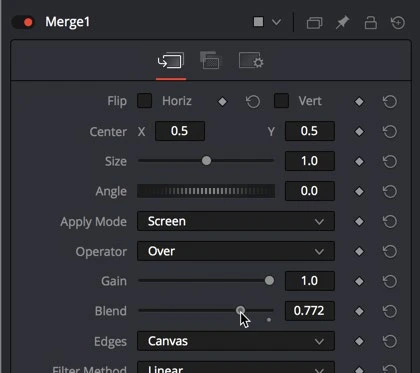
- Adjust foreground placement or Merge Blend as needed, then play the composition and inspect the actual MediaOut result.
Check your result
The correct image sits over the background and the same composite reaches the Edit timeline.
Technical reference: DaVinci Resolve 21.1 Reference Manual, Blackmagic Design, September 2026. Screenshot page numbers refer to that manual. Independently written guidance; specific controls may vary by platform and build. Authorship & image credits.