← All 100 how-to guidesGUIDE 080 / 100
FUSION & COMPOSITING
How to fix a black or missing Fusion output
DaVinci Resolve Studio 21.1 · Original practical guide
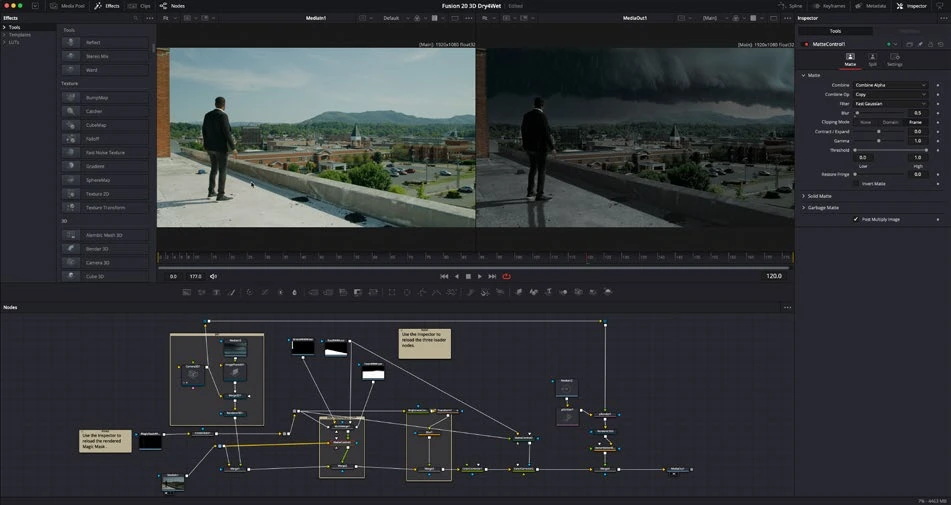
A Fusion viewer can display any selected node, while the Edit page uses the MediaOut result. Diagnose the actual output path rather than the last attractive preview.
ACTUAL RESOLVE INTERFACEView full size ↗
Step by step
- Select MediaOut and load it into a viewer. Check whether the expected image reaches that node at the current frame.
- Trace the connection backward through the final Merge and its inputs. Inspect MediaIn sources for offline media or an incorrect frame range.
- Temporarily bypass one suspect node at a time. Check masks, Blend values, alpha, and input order before changing the whole composition.
- Return to Edit after restoring a valid output connection and render a short section if caching may be showing an outdated result.
Check your result
MediaOut and the Edit timeline display the same intended composite over the complete used range.
Technical reference: DaVinci Resolve 21.1 Reference Manual, Blackmagic Design, September 2026. Screenshot page numbers refer to that manual. Independently written guidance; specific controls may vary by platform and build. Authorship & image credits.